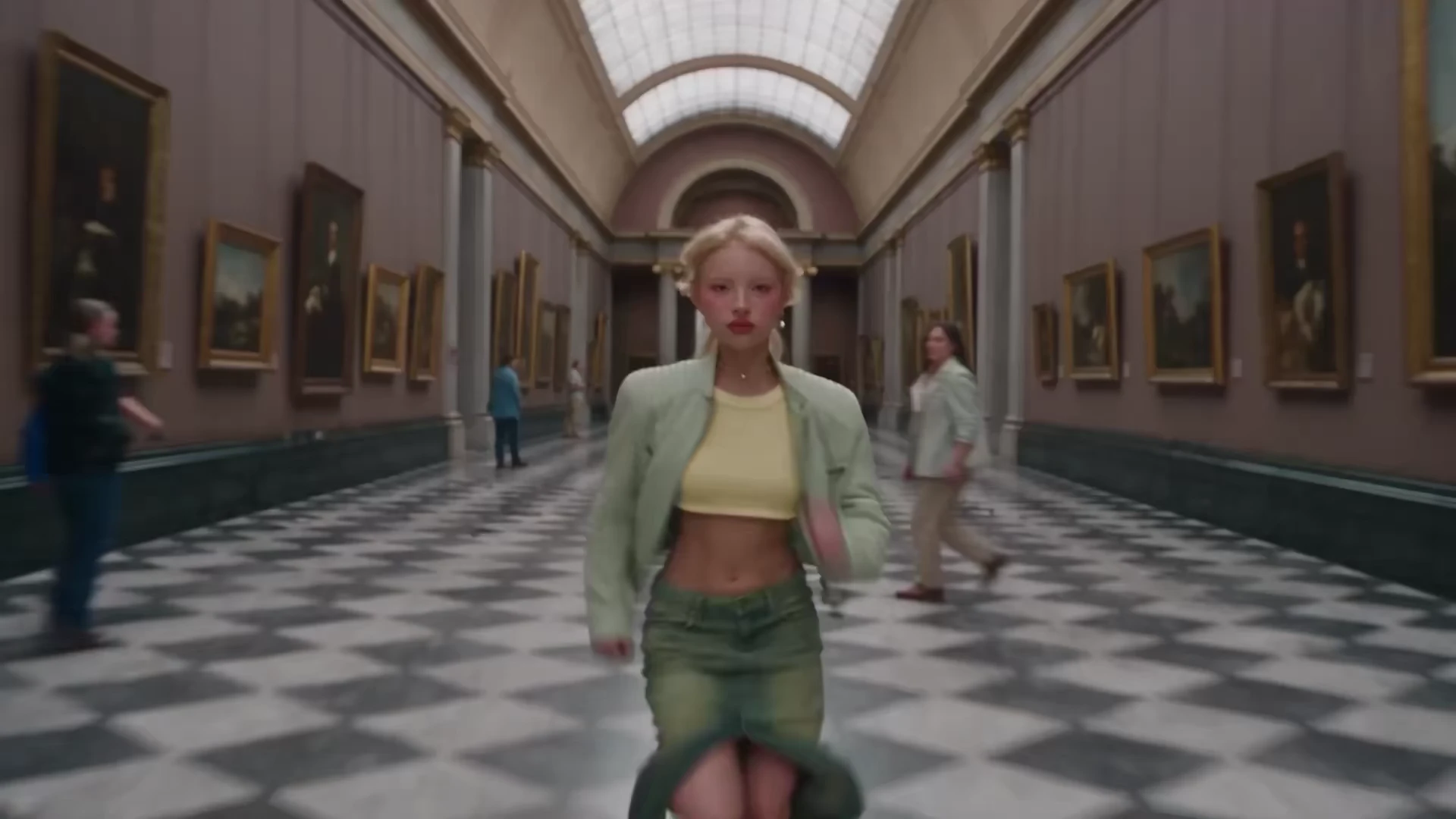
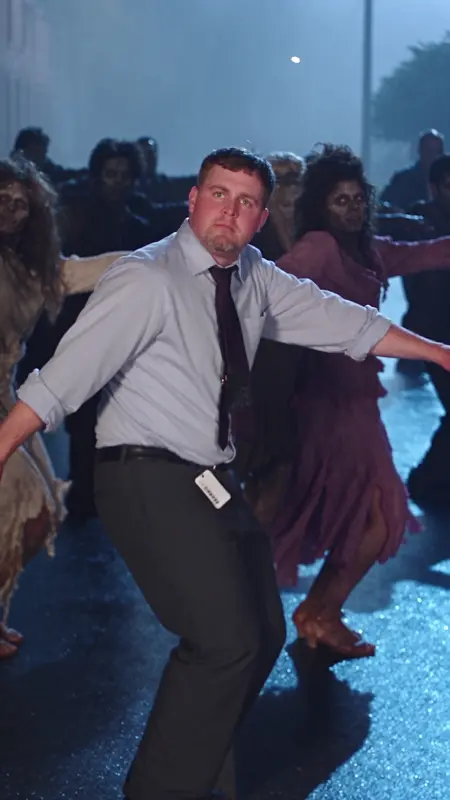
Genjutsu AI Video Generator Motion Transfer and Object Swap

Start with a clip that already has the movement you want. Transfer its choreography to a new performer or use Object Swap to change a character, outfit or prop while keeping the rest of the shot consistent.

Video editor

What Is Genjutsu AI?

Genjutsu AI is a video-to-video tool for transferring a performance to a new character or replacing a person, product or prop in existing footage.

Upload one source video and one to eight reference images. The video guides the movement, camera work and timing. The images define the appearance of the new character or object.

Use the optional prompt to specify the change and the details you want to preserve, such as the framing, background or lighting.

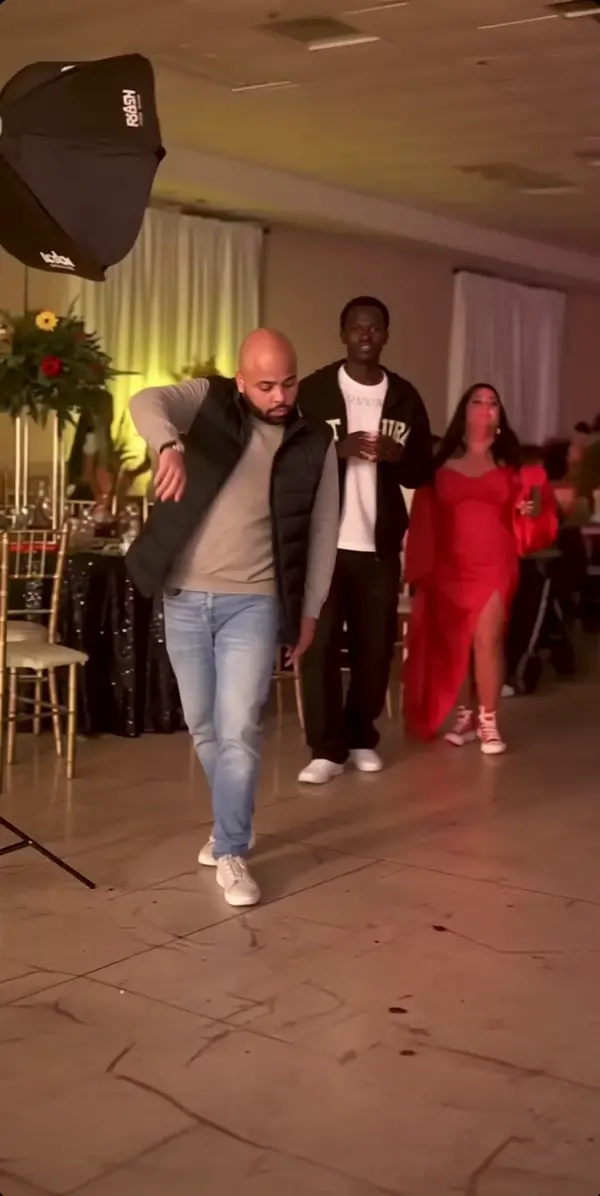
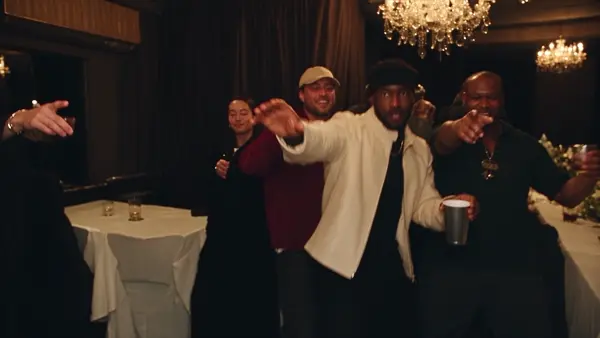
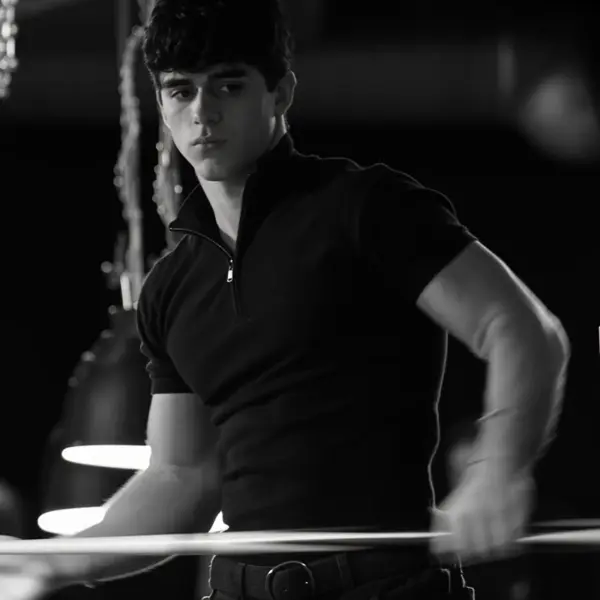
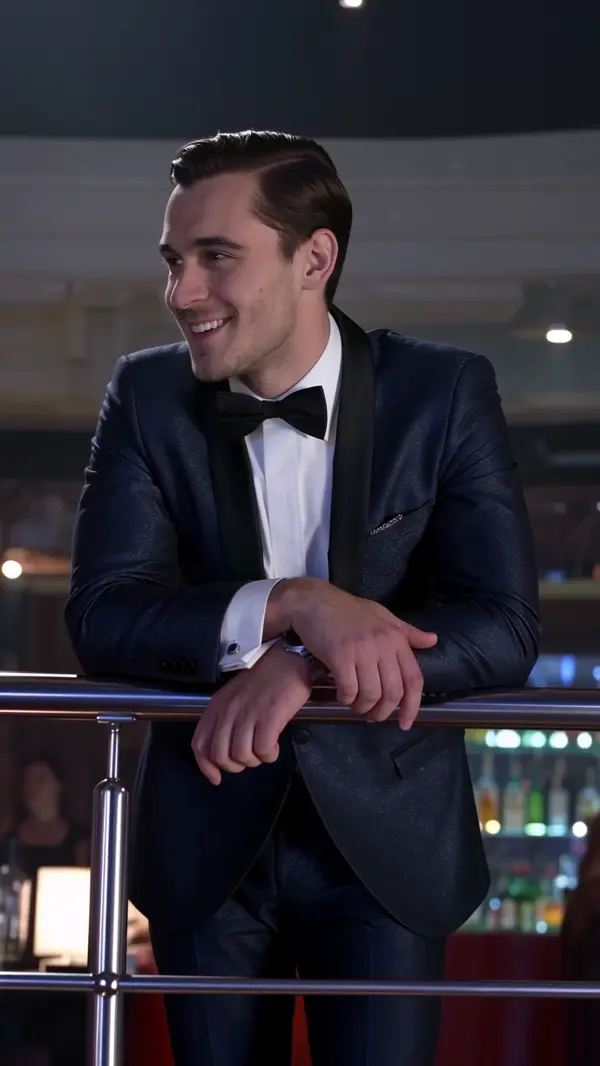
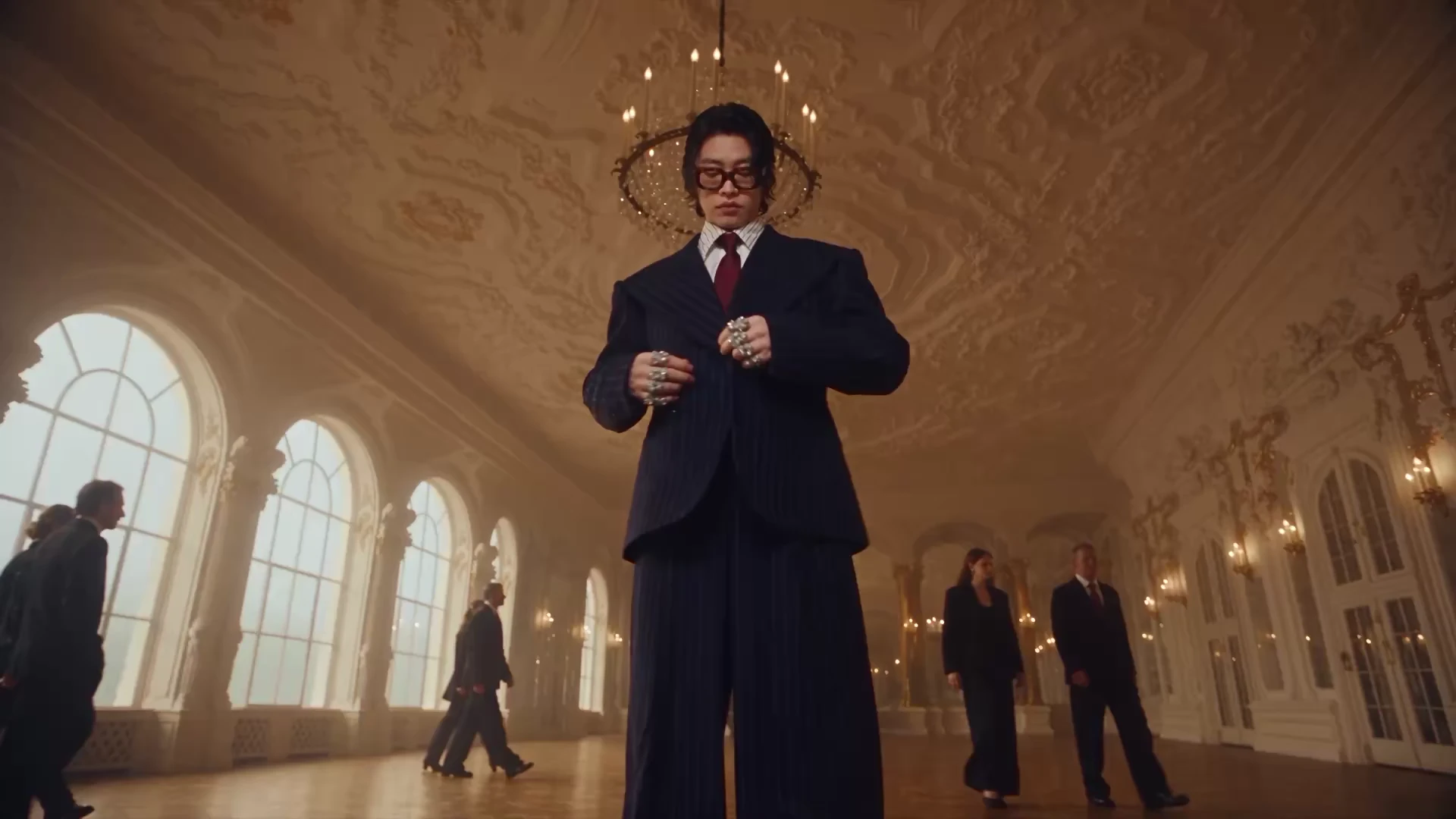
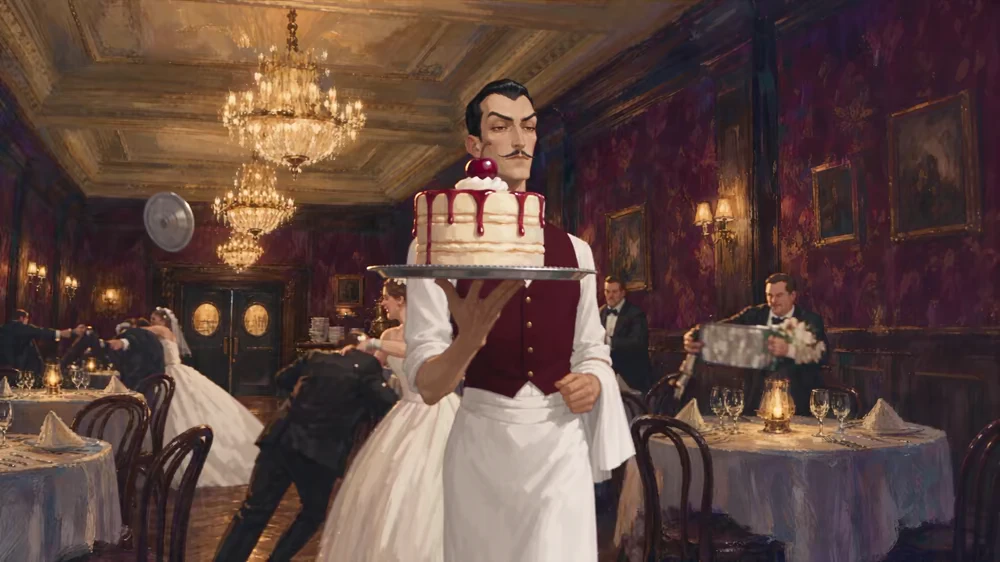
A performer in a dark suit in a warmly lit ballroom
What each Genjutsu AI mode changes and preserves
ModeWhat changes and what stays
Motion TransferA new character performs the source action. The clip guides the choreography, camera movement and timing.
Object SwapA selected person, product or prop is replaced. The source guides the surrounding scene, lighting and framing.

Key Features of Genjutsu AI

Four production decisions that keep motion transfer readable when the performer, location, or object changes.

Genjutsu AI Motion Transfer

Upload a reference video and one or more character images. This AI motion transfer mode applies the video's movement to your character, including full-body motion, fast moves, and hand gestures, using the original timing as a guide.

Genjutsu AI Object Swap

Replace a product, character, prop, logo, or package in a source video. This AI object swap mode uses the original framing, camera path, and timing to guide the edit around the item you choose.

Assign Each Reference a Clear Role

A character image can control facial structure, clothing, and proportions, while a location image can guide architecture, palette, and atmosphere. State which reference governs each part of the result rather than uploading an unrelated collection. Use only original or permission-cleared media, and keep the references visually compatible in perspective and light so the generated subject looks integrated into the new scene instead of pasted over it. Remove any reference that adds ambiguity without a clear job.

Review the Complete Clip, Not One Frame

Watch the full result for identity drift, object shape, hand and foot contact, occlusion, edge quality, shadows, costume continuity, and camera direction. A polished opening image can hide a failure that appears halfway through the movement. When one problem is visible, revise only the relevant reference or protection instruction. Controlled revisions preserve successful motion and make the next generation genuinely comparable to the previous take. Check the final pose as carefully as the opening frame.

Creative Controls

Motion reference

Upload a clip in Reference Video to guide the action and camera. Describe the specific moments to match, such as a turn, a pause before a step or the closing pose.

Character reference

Add a clear photo in Reference Images to guide the new identity, clothing and proportions. Use additional angles when the performer turns away from the camera.

Scene continuity

Name what should stay in place, including the other people, background layout and direction of light.

Framing and timing

Choose the output aspect ratio and duration before generating. Compare the result with the source at the moments that matter to the edit.

What Can You Create with Genjutsu AI?

Trend videos, product ads, recast characters, regional versions, and storyboard previews, all from a clip you already have.

Genjutsu AI Trend Videos

Take a popular dance or scene and put your own character in it. Motion Transfer copies the moves while your image supplies the face and outfit.

Genjutsu AI Product Swap Ads

Replace the product in an ad clip with yours, then reuse the same shot for every product variant. Use the source camera movement and timing to guide each swap.

Genjutsu AI Character Recasts

Recast a mascot, avatar, or brand character in an existing scene without animating it again. Your image sets who appears. The source clip sets how they move.

Regional Versions

Swap packaging, logos, or props to make local versions of one video. You shoot once and change the details per market.

Storyboard Previews

Test a shot with a stand-in character before a full production. Move the camera and timing from a reference clip onto a rough character image.
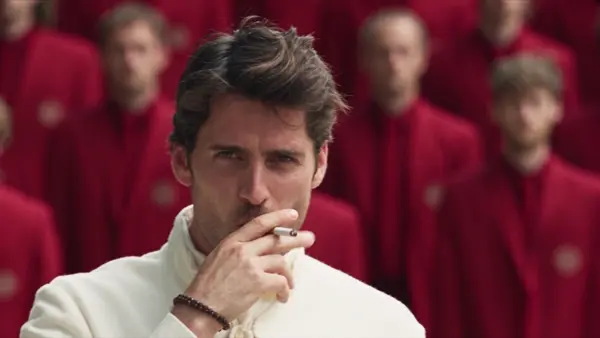
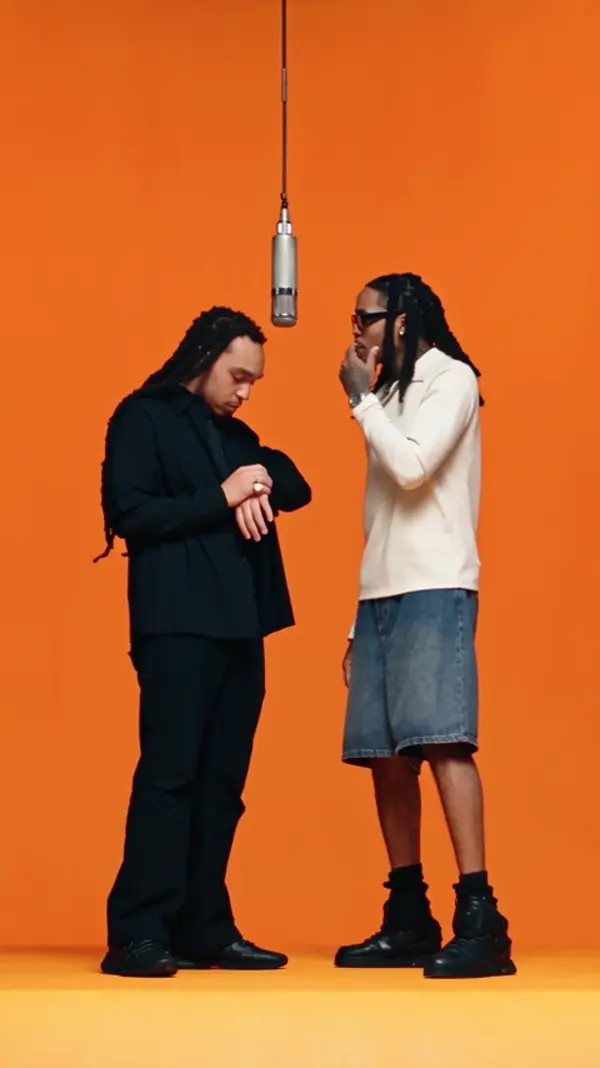
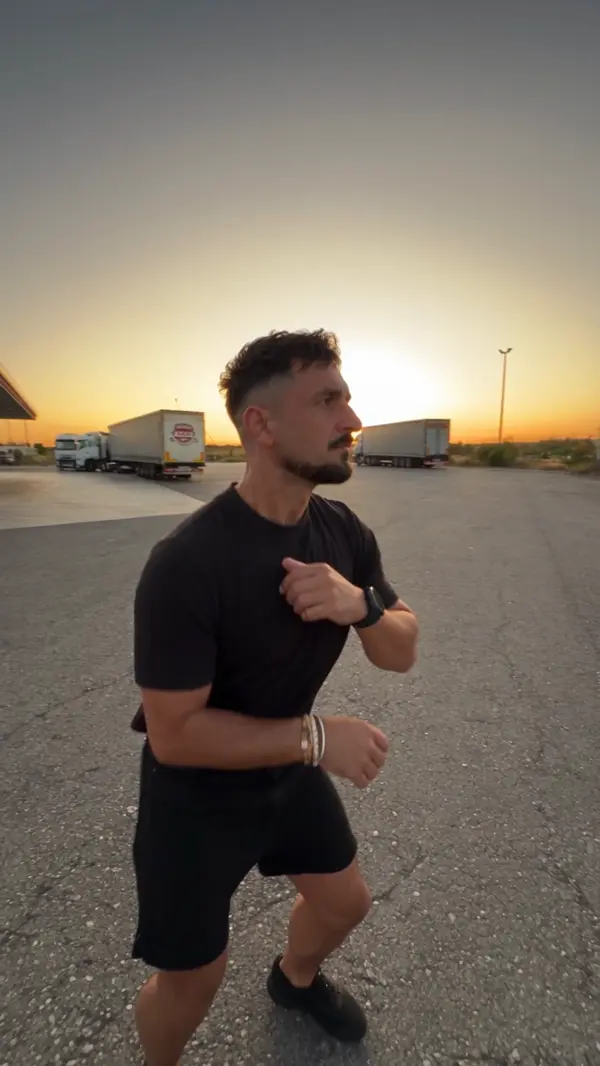
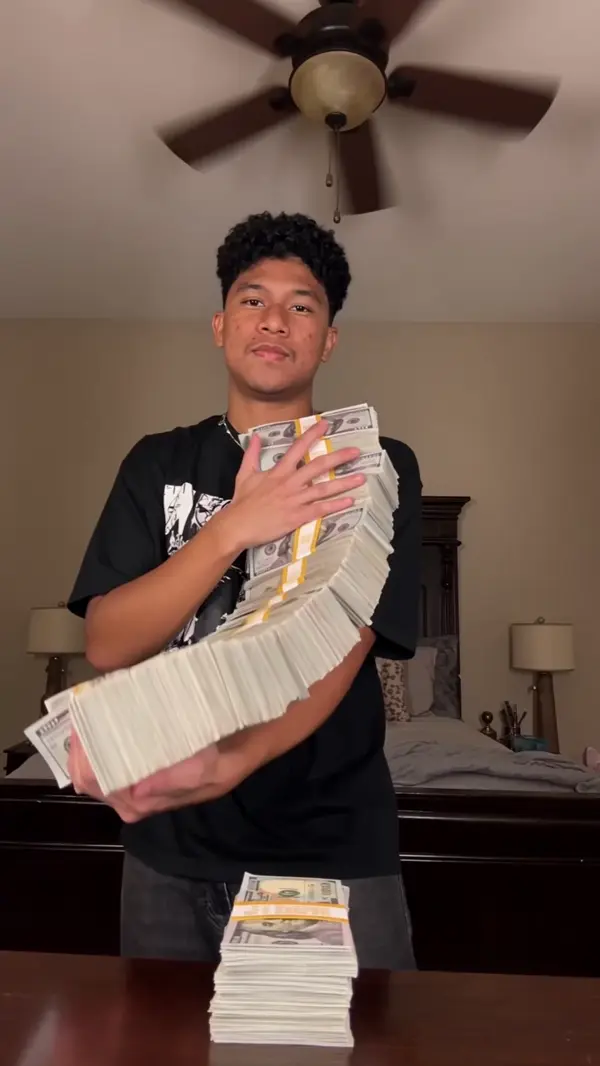
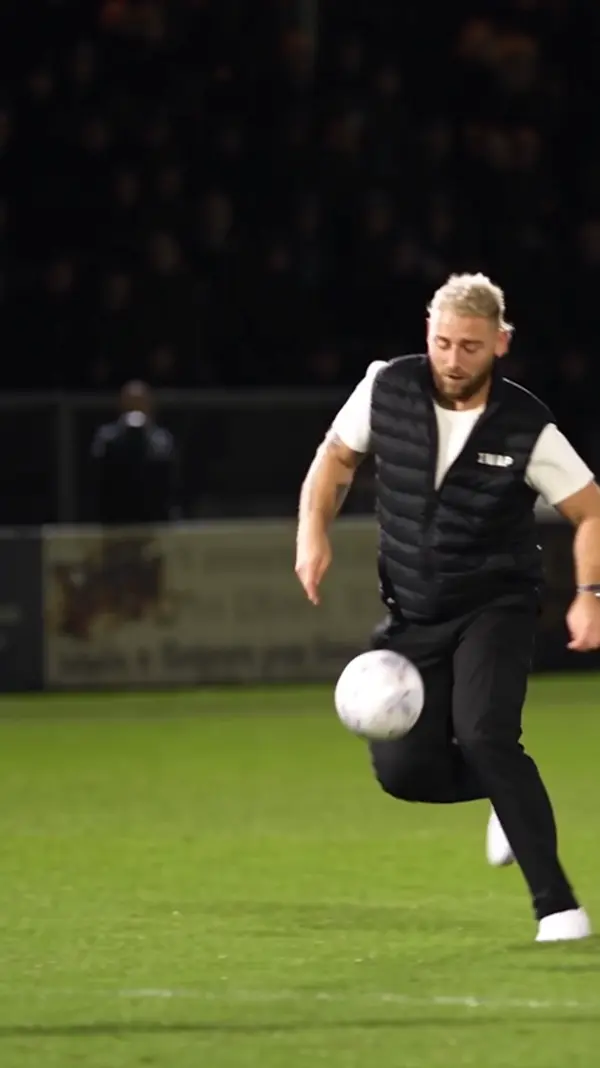
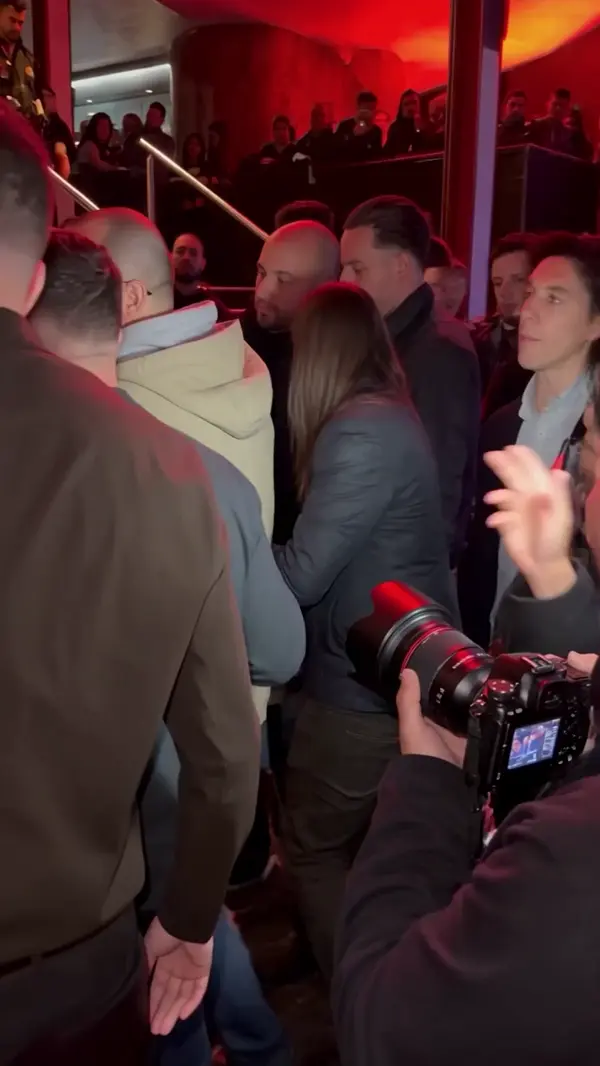
Genjutsu AI Video Examples:Turn one video into any reality

Who is Genjutsu AI Built For?

People who already have a clip that works and need one thing in it to change.

Social Media Creators

You found a trend with the right moves and want to appear in it. This Genjutsu AI tool moves the choreography onto your character, so you can use the source clip to guide the new performance.

Ecommerce and Ad Teams

You need the same ad with different products. Object Swap changes the product in the shot, and you test several versions from one source clip instead of reshooting each one.

Animators and Character Artists

You have a character design and want it moving. Motion Transfer gives your illustration real motion from a reference clip.

Studios and Agencies

You show clients a rough cut before production. Genjutsu AI lets you swap talent or props in one reference video and compare versions side by side.

Filmmakers and Directors

You want to see a shot before you build it. Use a reference clip for the camera move and timing, add a stand-in character, and judge the framing.

Marketing Teams Going Local

You run one campaign in several markets. Use Object Swap to change packaging, logos, or props for each region, with the original shot, camera move, and timing as a guide.

Motion Transfer vs. Object Swap

Workflow decisionMotion transferObject Swap
What you start withA clip with the performance or camera movement you wantA shot with a specific performer, outfit or prop you want to change
What guides the resultThe source action and camera plus a visual reference for the new subjectA visual reference and a clear instruction about what to replace
What to reviewFoot placement, gesture timing and camera directionAppearance, edges, shadows and continuity around the replacement

Genjutsu vs. Genjutsu Light

Both models offer the same two workflows. Choose by the length of your source clip and, for Object Swap, its frame size.

SettingGenjutsuGenjutsu Light
Available modesMotion Transfer and Object SwapMotion Transfer and Object Swap
Reference inputsOne source video of at least 4 seconds and 1–8 imagesOne source video of at least 4 seconds and 1–8 images
Output resolution480p, 720p or 1080p480p, 720p or 1080p
Source duration after preparationRounded up, up to 30 secondsRounded up, up to 15 seconds
Object Swap frame sizeAt least 409,600 pixels per frameAccepts frames below 409,600 pixels
Billable seconds at a per-second ratePrepared durationTwice the prepared duration

Why Use Genjutsu AI on KlingMotion?

Keep only the motion

Use the original performance, camera movement, and timing as the foundation. Reference images can change the performer or move the action into a new setting.

Keep your character in every video

Start with footage shot on a phone. Use a consistent character reference across edits while changing the outfit, location, and color treatment.

Generate now

Same take, two realities

Move the divider to reveal the source footage and the edited scene at the same point in the action. Watch how the movement and cuts line up.

What to Check Before You Export

Identity across angles

Check the face and outfit in profile, at the closest point to camera and at the end of the shot.

Contact and occlusion

Watch feet meeting the ground, hands touching props and the moment the character passes behind someone.

Timing and camera

Compare the opening, fastest action and last pose with the source. Pay attention to direction changes and reframing.

Background and light

Look for unexpected changes around the replacement. If a draft changes too much, simplify the instruction and try one edit at a time.

How to Create a Genjutsu-Style Video

Start with one source video and one to eight reference images.

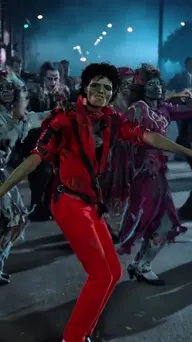
  1. The original dancer in red in the reference clip

    Choose a source clip

    Start with a continuous shot with clear framing. Pick one movement to follow, such as a turn, a short walk or a product reveal.

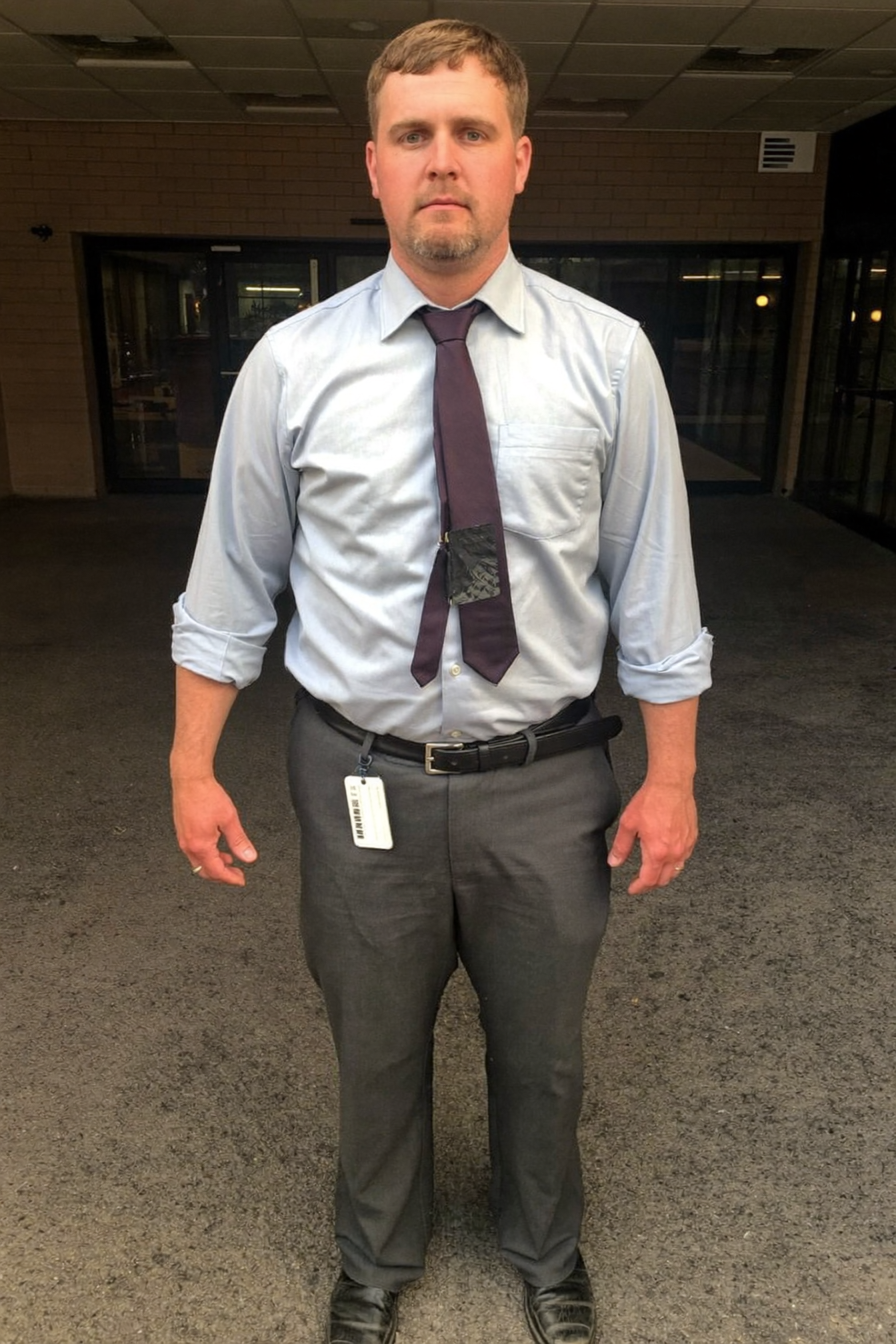
  2. The subject photo of the replacement dancer

    Add your images and reference video

    Upload one source clip and up to eight reference images. Choose Motion Transfer or Object Swap, then describe the change in the prompt.

  3. The replacement dancer performing in the generated clip

    Generate, review and revise

    Check the prepared duration, then run a short test. Compare the opening, the fastest action and the ending. Change one instruction or image at a time so you can tell what helped.

Genjutsu AI Prompt Examples

Motion Transfer

Use the character from the reference image. Follow the source dancer’s footwork and arm movements, and keep the original camera distance through the final turn.
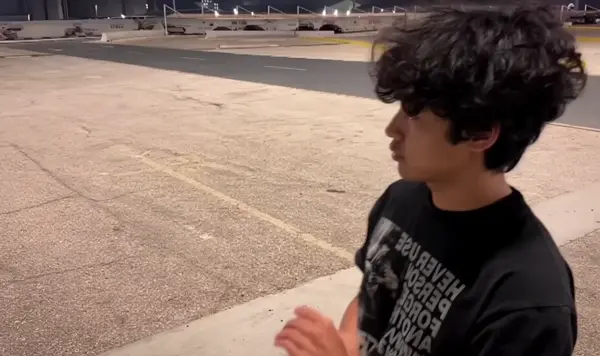
Object Swap

Replace the red mug with the white ceramic mug from the reference image. Keep the hand placement, warm window light and camera movement consistent.
Genjutsu AI Pricing

Choose Your Genjutsu AI Credit Pack

Use the same one-time credit packs across our video tools. Credits never expire.

Starter

$9.9one-time
99 credits included
Up to 6 videos generated
Motion extraction and transfer
Image-to-video animation (up to 30s)
Full-body motion accuracy
HD export, No watermark
Standard queue speed
Email support
Most Popular

Basic

$29.9one-time
330 credits included
Up to 22 videos generated
Motion extraction and transfer
Image-to-video animation (up to 30s)
Full-body motion accuracy
Precision hand and gesture control
Flexible character orientation modes
HD export, No watermark
Priority queue speed
Priority support (email)

Plus

$49.9one-time
600 credits included
Up to 40 videos generated
Motion extraction and transfer
Image-to-video animation (up to 30s)
Full-body motion accuracy
Precision hand and gesture control
Flexible character orientation modes
Prompt-guided scene refinement
HD export, No watermark
Faster priority queue + up to 5 concurrent jobs
Priority support

Professional

$99.9one-time
1250 credits included
Up to 83 videos generated
Motion extraction and transfer
Image-to-video animation (up to 30s)
Full-body motion accuracy
Precision hand and gesture control
Flexible character orientation modes
Prompt-guided scene refinement
Camera movement support
HD export, No watermark
Commercial use license
Fastest queue + up to 10 concurrent jobs
24/7 priority support
Bulk processing
API access (coming soon)

Genjutsu AI Credit Rates

ResolutionGenjutsuGenjutsu Light
480p2 credits/s1 credit/s
720p8 credits/s4 credits/s
1080p20 credits/s8 credits/s

These rates apply to Motion Transfer and Object Swap. Genjutsu bills for the source duration rounded up to the next whole second, up to 30 seconds. Genjutsu Light trims the source to 15 seconds and bills for the prepared source plus the output. Credits equal the billable seconds multiplied by the rate above.

For a 10.2-second source at 720p, Genjutsu counts 11 seconds at 8 credits per second. Genjutsu Light counts 22 seconds at 4 credits per second. Both total 88 credits.

Choose one-time credits • Flexible billing options

✓Choose one-time✓Credits never expire✓Secure payments✓Email support support@klingmotion.com

Taxes may apply based on your location and will be calculated at checkout.

Genjutsu AI Frequently Asked Questions

What is Genjutsu AI?

Genjutsu AI is a video transformation workflow that starts from an existing clip. Motion transfer uses the clip to guide a new performance. Character replacement focuses the edit on a selected performer.

When should I use motion transfer or character replacement?

Use motion transfer when you want to reuse the performance in a different scene. Use character replacement when the original composition works and the performer is the main change.
How does video duration affect the credit cost?

Genjutsu rounds the source duration up to a whole second and caps it at 30 seconds. Genjutsu Light caps it at 15 seconds and bills for both the prepared source and output. Multiply the billable seconds by the credit rate for your model and resolution.

Can I use my own reference video?

Yes. Upload an MP4 or MOV clip at least four seconds long. Standard Genjutsu Object Swap also requires at least 409,600 pixels per frame.
How many images should I use to replace a character?

Use one to eight reference images. Start with a clear photo of the new character and add other angles when they help define the face, outfit or silhouette.
Do I need to write a prompt?

The prompt is optional. Use it to name the movement to follow or the object to replace. For a crowded shot, identify the subject by its position or outfit.

Turn a Reference Clip Into a New Scene

Add your own footage and describe the change to transfer a performance or replace a character.

Create a video
Kling Motion Control Pricing

Add credits and keep creating

Choose a one-time credit pack and continue creating.

Starter

$9.9one-time
99 credits included
Up to 6 videos generated
Motion extraction and transfer
Image-to-video animation (up to 30s)
Full-body motion accuracy
HD export, No watermark
Standard queue speed
Email support
Most Popular

Basic

$29.9one-time
330 credits included
Up to 22 videos generated
Motion extraction and transfer
Image-to-video animation (up to 30s)
Full-body motion accuracy
Precision hand and gesture control
Flexible character orientation modes
HD export, No watermark
Priority queue speed
Priority support (email)

Plus

$49.9one-time
600 credits included
Up to 40 videos generated
Motion extraction and transfer
Image-to-video animation (up to 30s)
Full-body motion accuracy
Precision hand and gesture control
Flexible character orientation modes
Prompt-guided scene refinement
HD export, No watermark
Faster priority queue + up to 5 concurrent jobs
Priority support

Professional

$99.9one-time
1250 credits included
Up to 83 videos generated
Motion extraction and transfer
Image-to-video animation (up to 30s)
Full-body motion accuracy
Precision hand and gesture control
Flexible character orientation modes
Prompt-guided scene refinement
Camera movement support
HD export, No watermark
Commercial use license
Fastest queue + up to 10 concurrent jobs
24/7 priority support
Bulk processing
API access (coming soon)

Choose one-time credits • Flexible billing options

✓Choose one-time✓Credits never expire✓Secure payments✓Email support support@klingmotion.com

Taxes may apply based on your location and will be calculated at checkout.