Kling 3.0 Motion User Guide
Kling 3.0 Motion Control is an advanced AI feature that lets you copy any action and expression from a reference video onto your character image while keeping facial identity consistent. It builds on earlier motion control technology and significantly improves identity stability and emotional realism. The system uses Element Binding to connect facial reference data with motion data, so you get stable, cinematic results instead of faces that drift or change across frames.
Traditional AI video tools often struggle to keep the same face across multiple frames, especially during complex movement or longer clips. Kling 3.0 Motion Control addresses this by extracting key facial information from your uploaded images or videos and using it as a reference to guide the generated animation. You upload a motion reference video and one or more character images; the system then extracts the motion and applies it to your character with high fidelity across angles and emotions. The result is a more reliable workflow for cinematic storytelling, character-driven content, and professional media production.
This guide explains how to use Kling 3.0 Motion Control, what inputs work best, and how to get the best facial consistency and motion quality in your generated videos.
Key Features of Kling 3.0 Motion Control
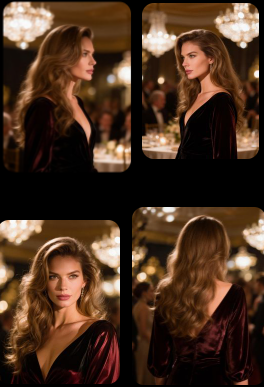
Consistent Facial Identity from Any Angle
Kling 3.0 Motion Control keeps facial identity stable even when the character turns their head or the camera moves. You can produce cinematic shots with multiple angles while preserving the same face.
High-Precision Motion Capture
Movements from your reference video are accurately reproduced. The system captures subtle body movements, head rotations, and emotional cues so the output matches the reference motion.
Emotion-Accurate Facial Expressions
Complex emotional transitions—smiling, sadness, surprise—are reproduced with high accuracy. Facial muscles, eye movement, and expression timing stay synchronized with the action.
Facial Restoration During Occlusion
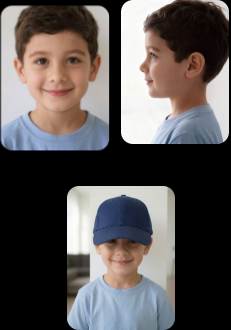
When a face is partially hidden by motion or camera framing, Kling 3.0 Motion Control can restore facial details to maintain clarity and identity.
Stable Facial Clarity Across Dynamic Framing
Zoom-ins, zoom-outs, and camera moves often distort faces in other AI tools. Kling 3.0 Motion Control keeps the face sharp and consistent regardless of framing changes.
Consistent Facial Identity from Any Angle
Use a motion reference and a character image; the output keeps the same face even when the character turns or the camera moves, so you get multi-angle shots without identity drift.
Motion Reference
Image Reference

Output
Complex Emotions, Faithfully Reproduced
The reference motion can include strong emotions; Kling 3.0 Motion Control transfers those expressions to your character with realistic timing and detail.
Motion Reference
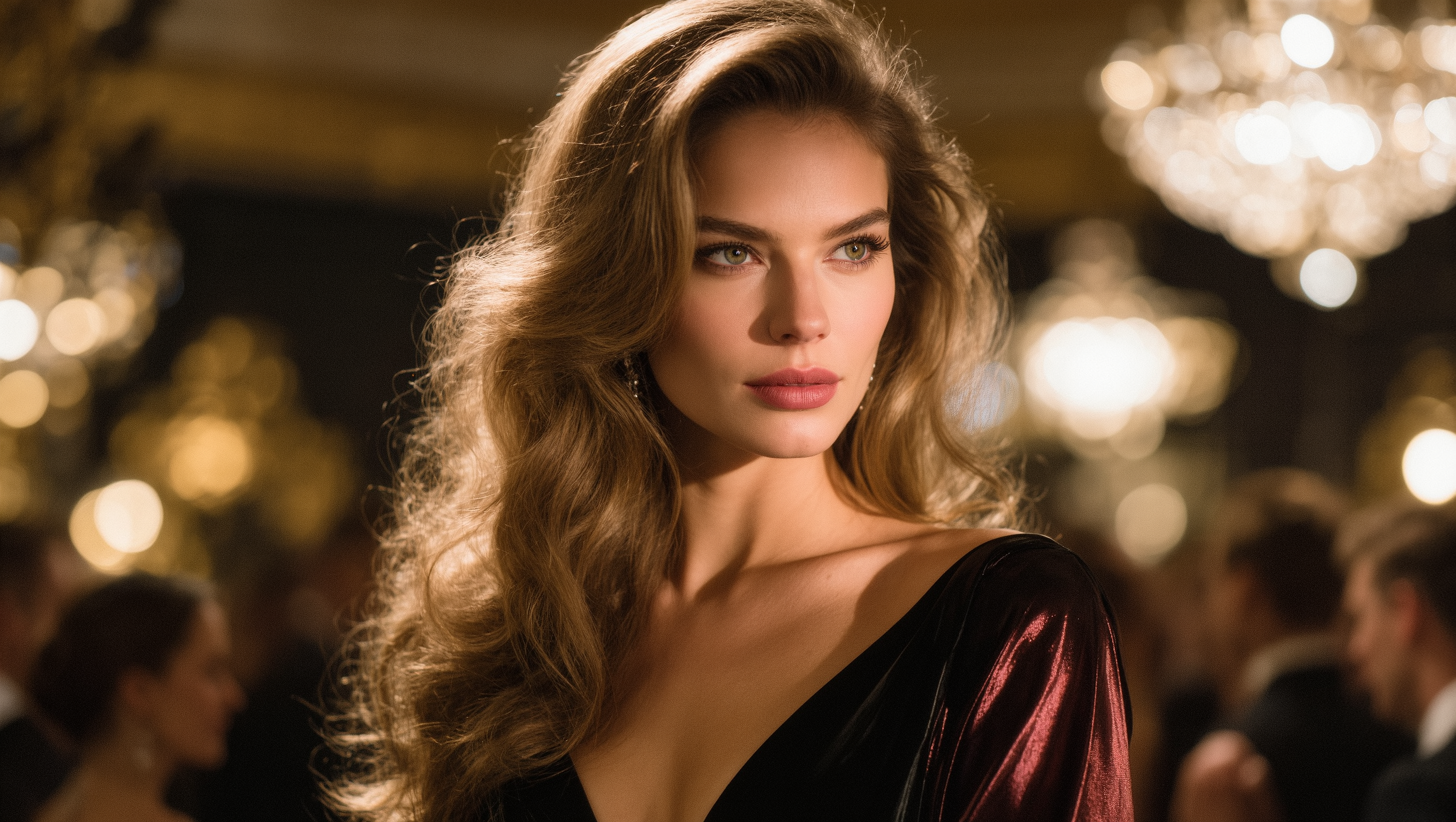
Image Reference
Output
Face Occlusion, High-Fidelity Restoration
When the face is partly blocked in the reference, the system restores facial clarity in the generated video so identity stays consistent.
Motion Reference

Image Reference
Output
Consistent Facial Clarity Across Dynamic Framing
With zooms and camera movement, the model maintains sharp, consistent facial features across the whole clip.
Motion Reference
Image Reference

Output
How to Use Kling 3.0 Motion Control
- Upload a motion reference video. Use a video that clearly shows the action and expressions you want to copy. A clip from a few seconds up to about one minute works well; the AI extracts the most relevant motion and facial data. Ensure the face in the reference is well lit and visible. Very long videos can still be used—the system will pick the most relevant segments to drive your character.
- Upload character image(s). Provide at least one clear face photo: at least 512px on the shorter side, and ideally 1024px or higher for cinematic quality. The image should show the face clearly with good lighting and minimal occlusion. Front-facing or slight-angle photos give the model strong reference data. You can upload multiple images from different angles; this improves identity accuracy and helps the system keep your character consistent across the generated video.
- Enter a prompt (optional). Describe the background, scene, style, or shot type (e.g., “slow pan,” “close-up”) to guide the generated video. This helps align motion and framing when the camera moves.
- Generate. Click generate. The system transfers the reference motion to your character while preserving facial identity, including across camera movement and complex emotions. Kling 3.0 Motion Control re-renders your character with the reference motion; lighting and the character image affect the final look, but motion and expression control stay high.
Tips for Best Results
- Use a well-lit reference video with visible facial motion. The AI relies on clear facial and motion data; good lighting and a visible face in the reference improve both motion transfer and identity consistency.
- Character images should show the face clearly with minimal occlusion. Avoid heavy shadows or objects covering the face so the model has strong reference data for identity.
- Front-facing or slight-angle photos give the model strong reference data. Multiple images from different angles further improve identity accuracy across the video.
- For dynamic camera moves, include similar angles in your reference video when possible. If your output will have camera movement, a reference that already includes those angles helps the system maintain facial consistency.
- Describe the shot in your prompt when the camera moves. Terms like “slow pan” or “close-up” help the system align motion and framing. Kling 3.0 Motion Control is built to preserve facial clarity across dynamic framing and multi-angle scenes.
Common Questions
Kling 3.0 Motion Control is optimized for human facial motion and identity. You upload a reference video for motion and a character image for appearance; the AI transfers the motion to your character while keeping facial consistency. For stylized or animated human-like characters, results can be strong if the face has clear structure. Usage limits depend on your Kling account and plan; you can typically generate multiple videos per day. For more answers, see the FAQ section on the Kling 3.0 Motion Control page.