USER GUIDE
Kling 4.0 User Guide
A practical walkthrough for creating videos with text, visual references and keyframes. Follow the examples below, then build your own scene in the editor.
Create a Kling 4.0 Video →1. Create Your First Kling 4.0 Video
Start with a short draft and one clear action. A simple scene is easier to review than a long sequence with several changing subjects. Keep your initial inputs focused on the detail you most need to preserve.
01
Choose an input mode
Open the Kling 4.0 editor. Use Text for a written brief, References for image or video guidance, or Frames for an image-led sequence.
02
Prepare the scene
Add your inputs and write a prompt. Explain what the subject does, where the action happens and how the camera should show it.
03
Set the output
Choose the resolution, aspect ratio and duration shown in the editor. Read the credit cost on Generate before submitting.
04
Generate and review
Sign in, select Generate and open History to follow the result. Watch the complete video, checking the opening, main action and ending.
2. Choose Text, References or Frames
The selected tab determines which media is submitted. Decide whether you need to describe a scene, borrow visual guidance or lock in an ordered set of images before preparing your files.
| Mode | Use it when | Inputs to prepare |
|---|---|---|
| Text | You want to build a scene from a written brief. | A prompt describing subject, action, setting and camera. |
| References | You need appearance, action or camera guidance. | Images and/or videos, with a prompt explaining each asset. |
| Frames | You have a specific opening or a planned image sequence. | A required first image, optional middle images and an optional last image. |
Kling 4.0 combines multimodal reference guidance with generation up to 30 seconds and sequences of up to 10 keyframes. Availability of higher-resolution output, voice profiles and other advanced capabilities depends on the controls offered in the editor. This walkthrough uses the modes and inputs currently available here.
3. Guide Appearance and Action with References
In References, upload the images and videos you want to use, then type @ in the prompt. Select an asset from the list rather than guessing its label. Image and video numbering are separate, so the first uploaded video is @video_1 even when images were added first.
Give each input a clear job
- Use character or product images for appearance and visible details.
- Use a video for movement, timing or a camera path.
- Specify which details should stay fixed when an action or setting changes.
- After removing or rearranging an asset, check the mentions again before submitting.
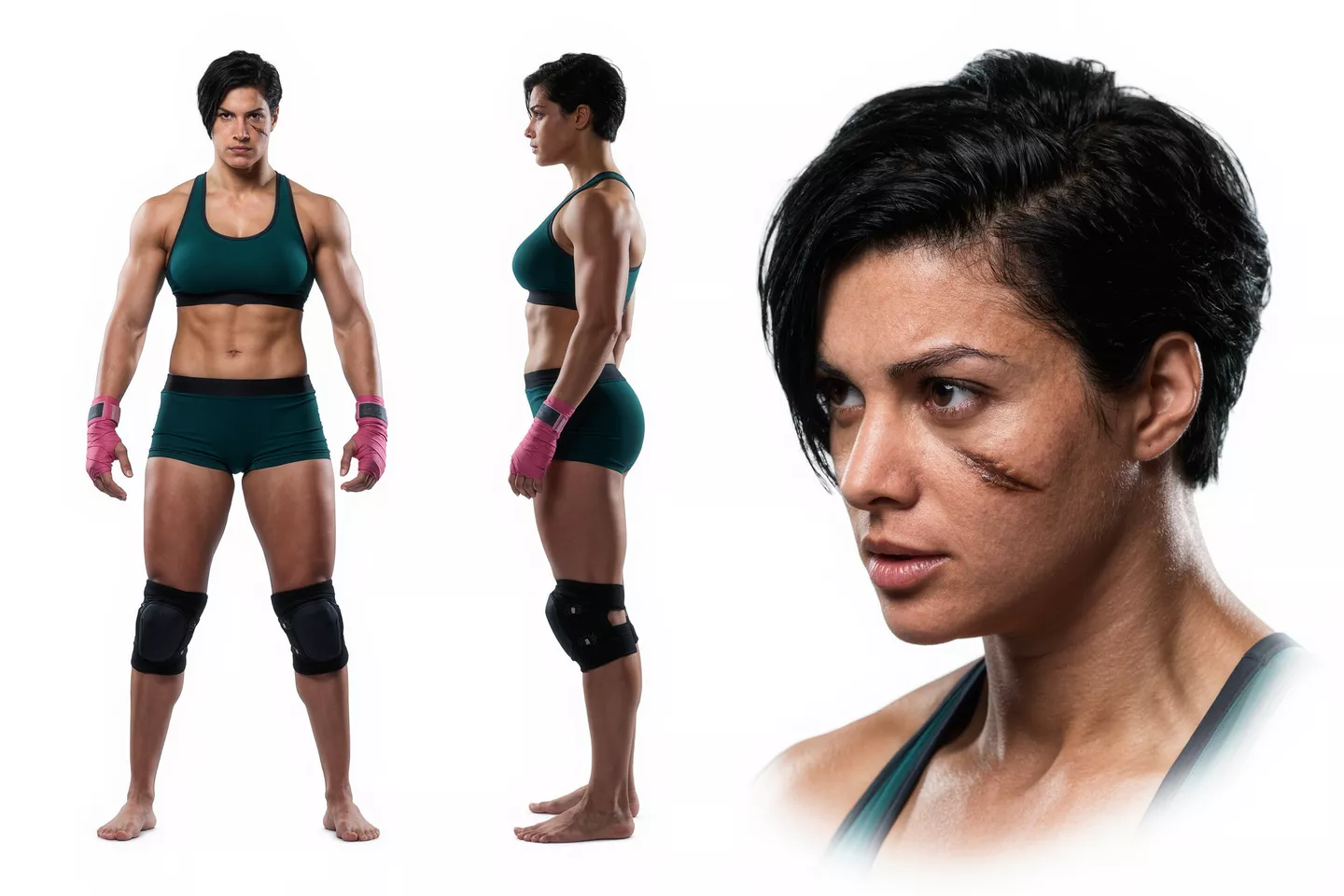
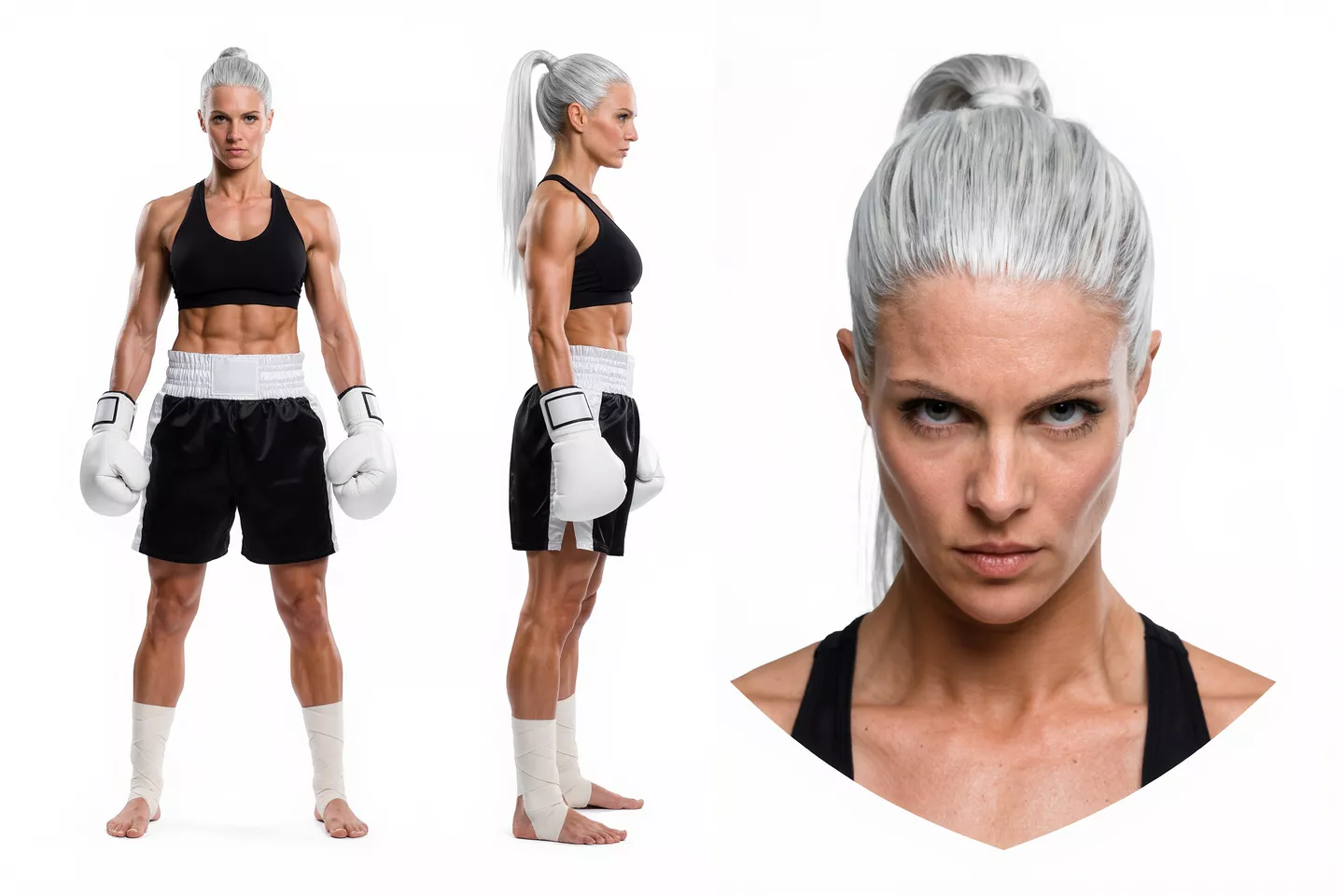
Prompt structureUse @video_1 for movement. Take the two character designs from @image_1 and @image_2, keeping each identity consistent.
Compare motion timing and character details separately. If the new characters look right but the action drifts, simplify the action instruction before replacing all your images.
4. Use Images to Guide Composition
A reference can establish where the subject belongs in the frame as well as what it looks like. Identify the foreground and background, the relative size of the subject and the viewing angle. If you want a change of angle, describe it as a new shot instead of asking for two incompatible views at once.
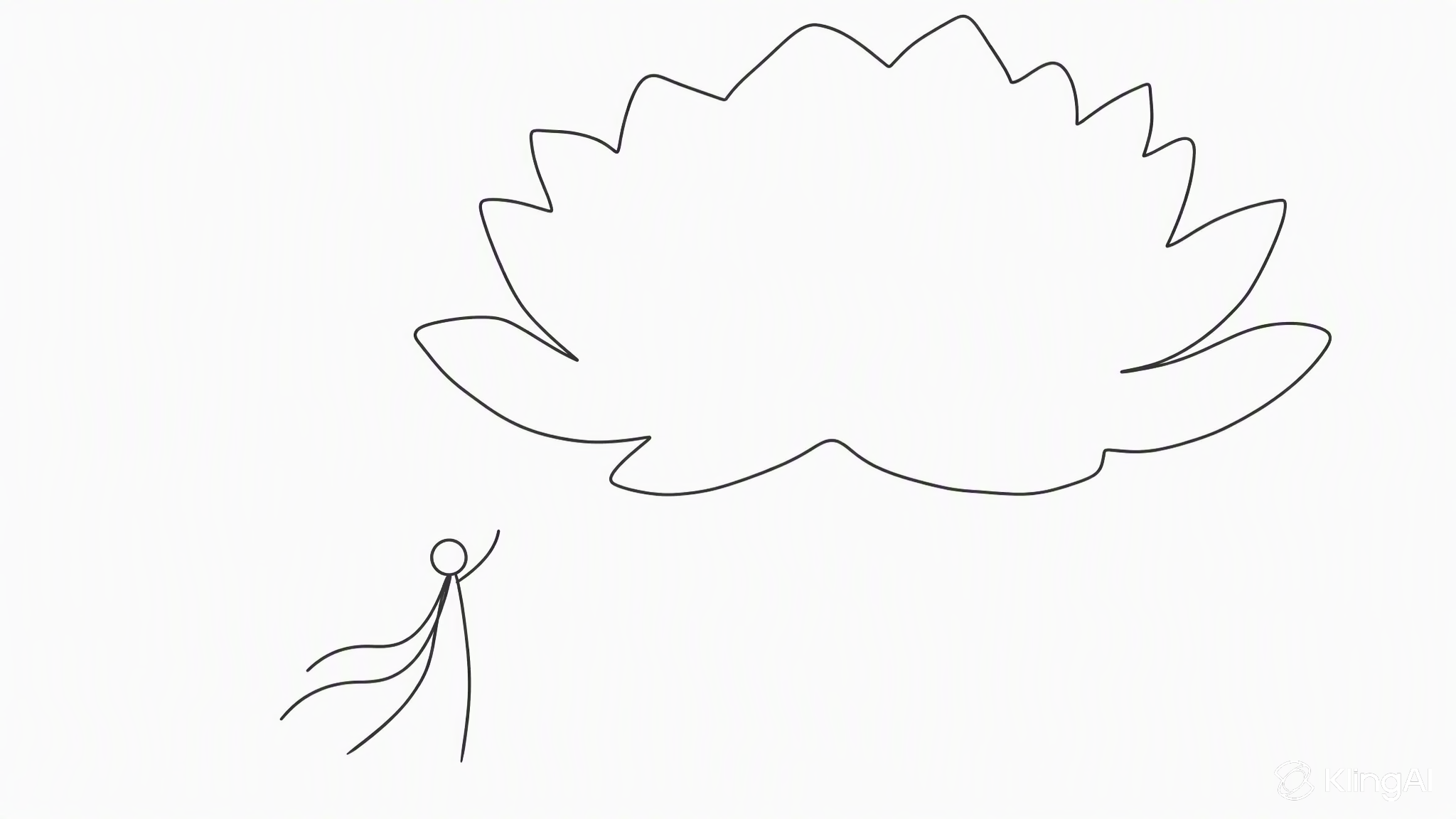
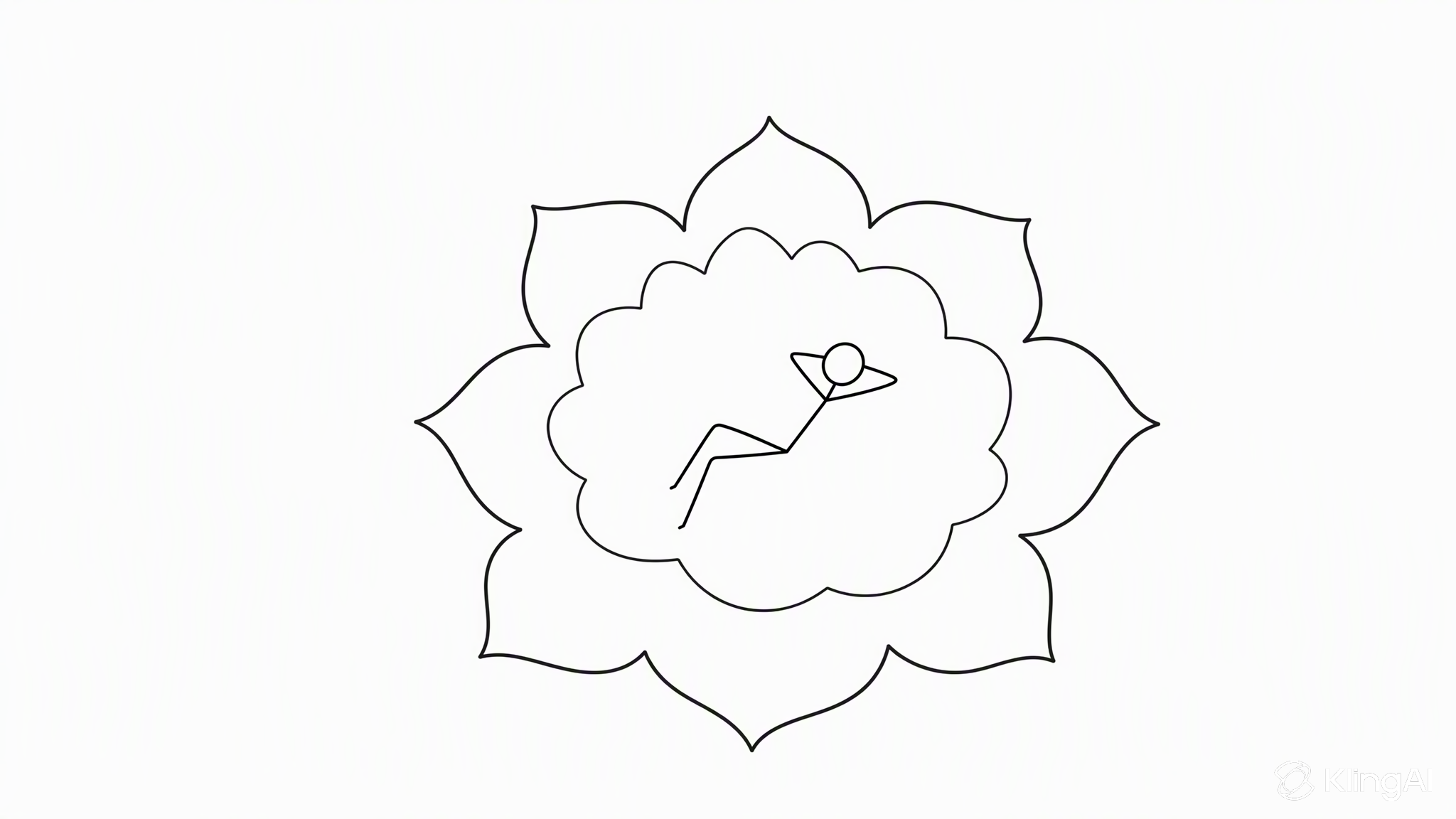
Prompt structureBegin with @image_1 framing. Then change to the overhead view from @image_2, preserving the scene’s lighting and subject.
5. Turn a Storyboard into a Shot Plan
When using a storyboard in References, explain that its panels describe the finished video. Name the shot order and the important transition between panels. Add a separate design sheet when the character needs a consistent silhouette, costume or prop. If an exact image must occupy a specific point in the sequence, consider Frames instead.
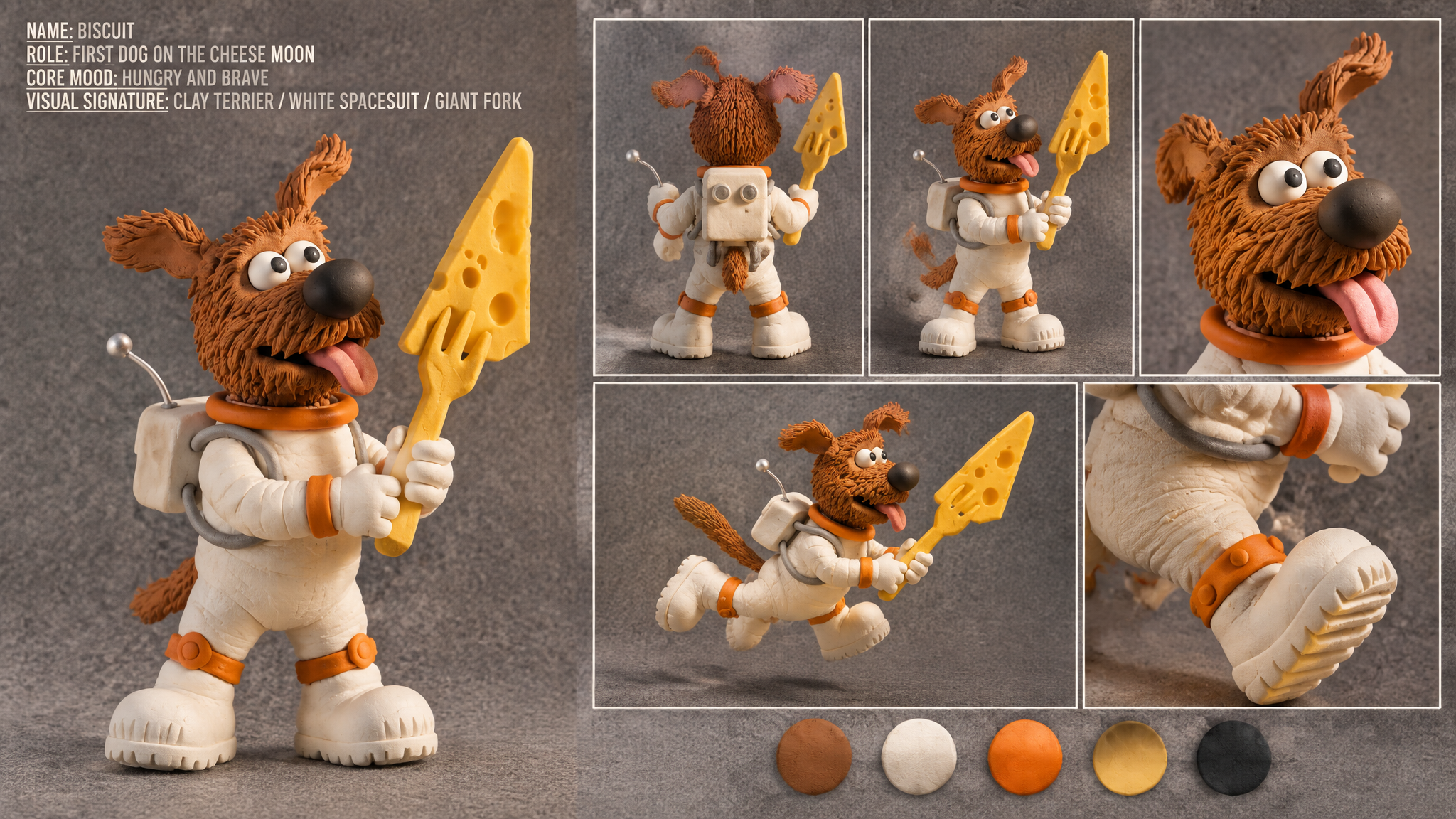
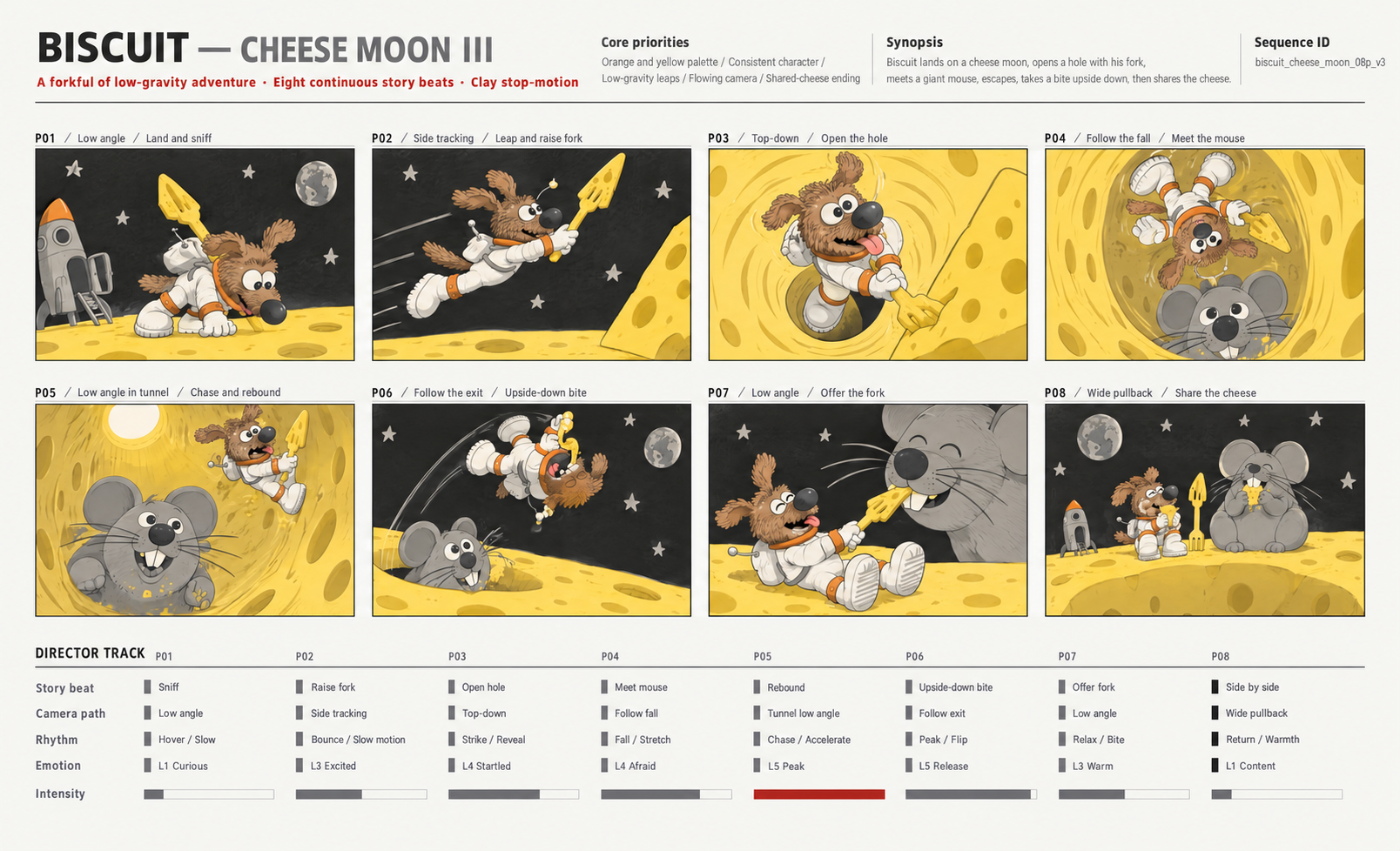
Prompt structureRead @image_2 as the shot plan and @image_1 as the character design. Animate the planned scenes, not the storyboard layout.
6. Start with an Image or Add an Ending
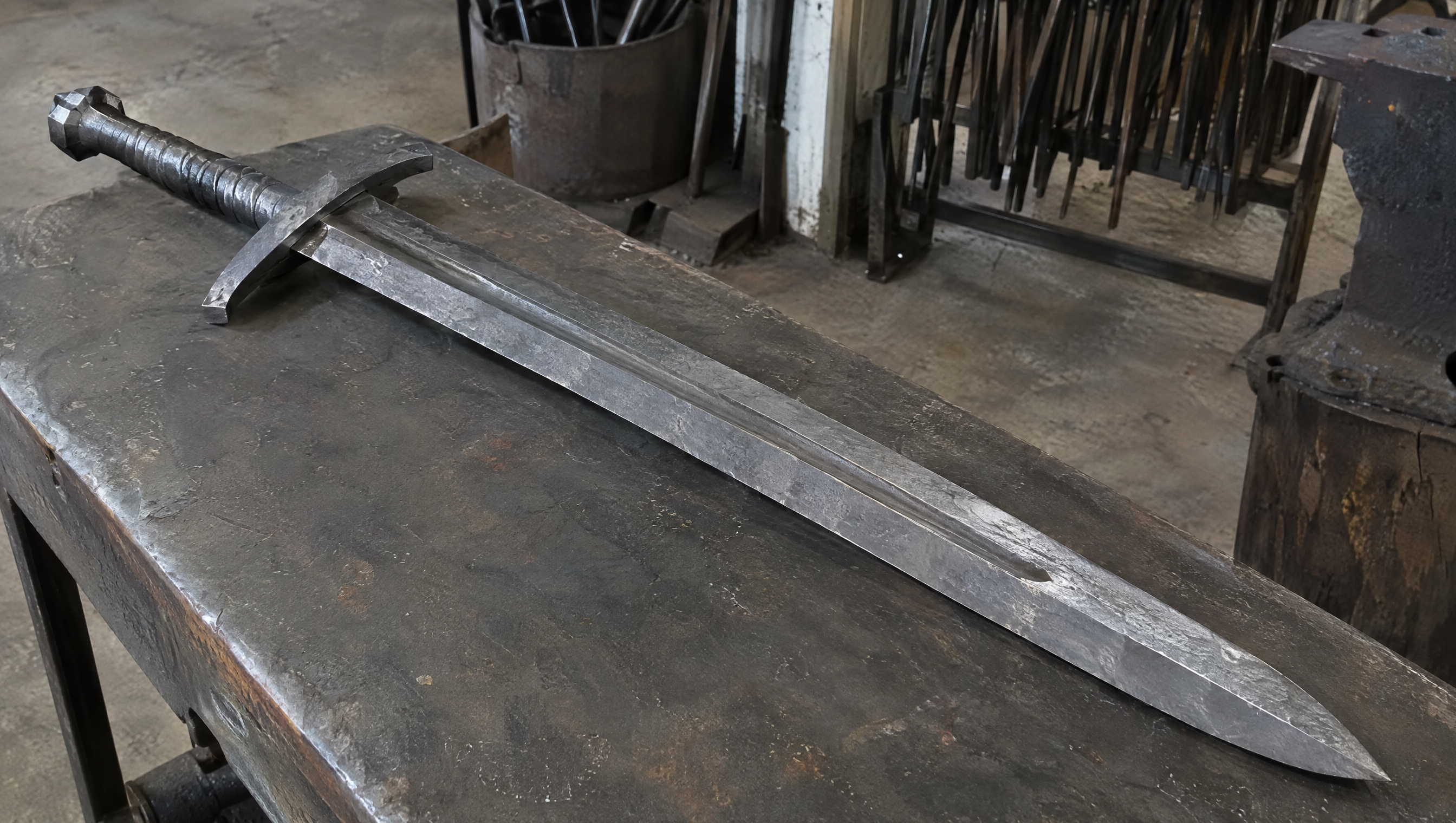
Select Frames and upload the first image. This is required in the current editor. Add a last image when you have a specific destination for the sequence. Describe the action that connects them rather than merely listing what each image contains.

- Check that both images share a plausible subject, setting and lighting.
- Describe the steps between the opening and ending states.
- Allow enough duration for the transformation or movement to read clearly.
- Review the last seconds of the output, not only the opening match.
7. Arrange Multiple Keyframes in Order
Use the Middle frame upload control to add intermediate images. Inspect their thumbnails in sequence; their order is the intended visual progression. Reserve a last frame only when it adds a useful ending. Repeating near-identical images can spend the available frame allowance without improving the scene.
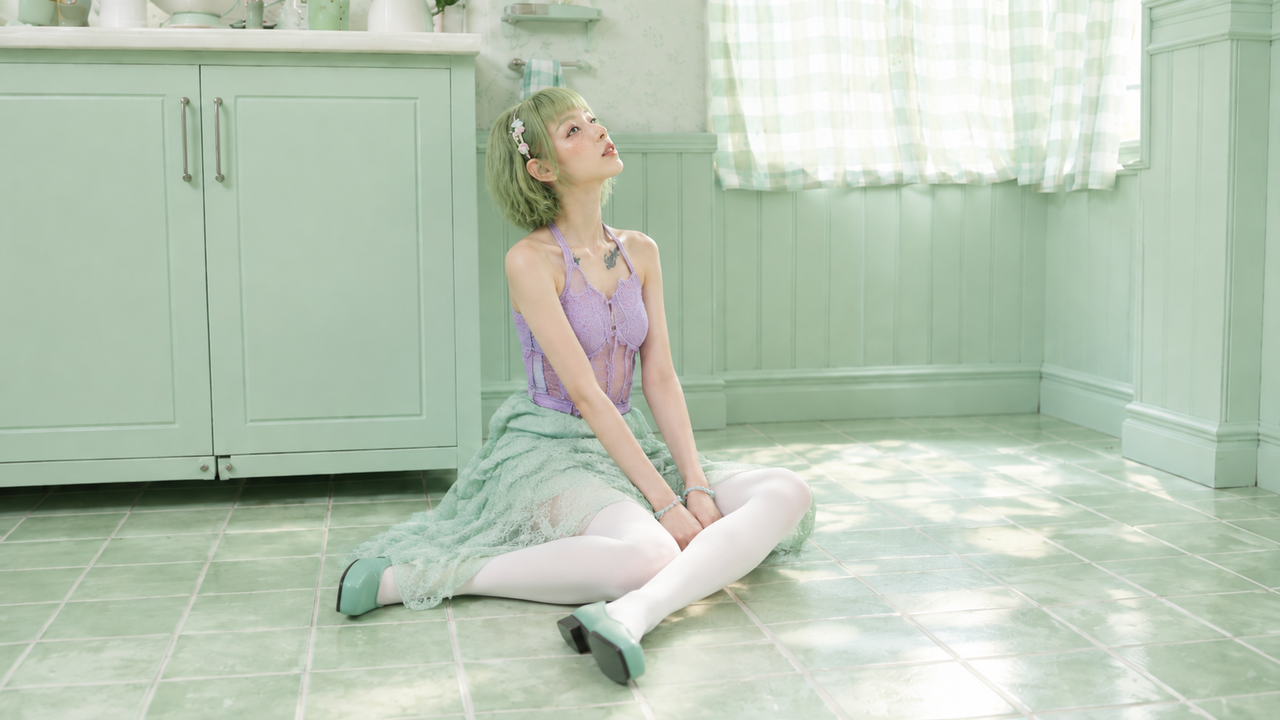
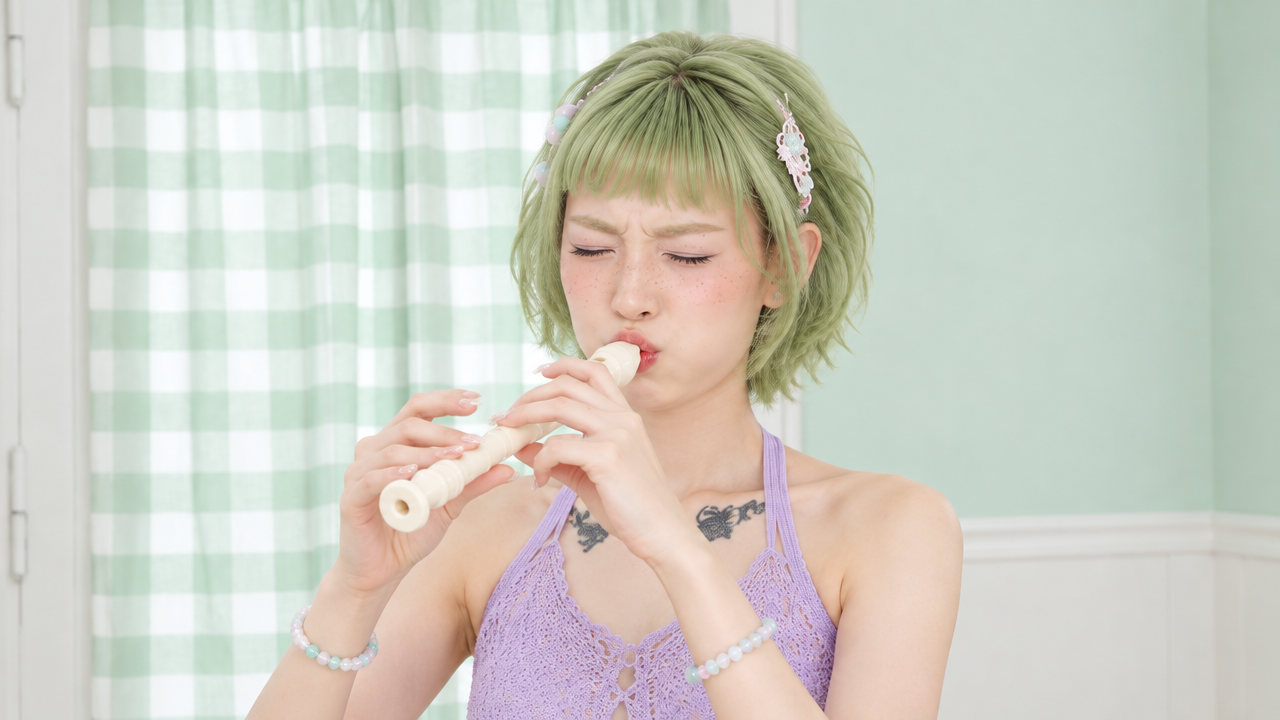
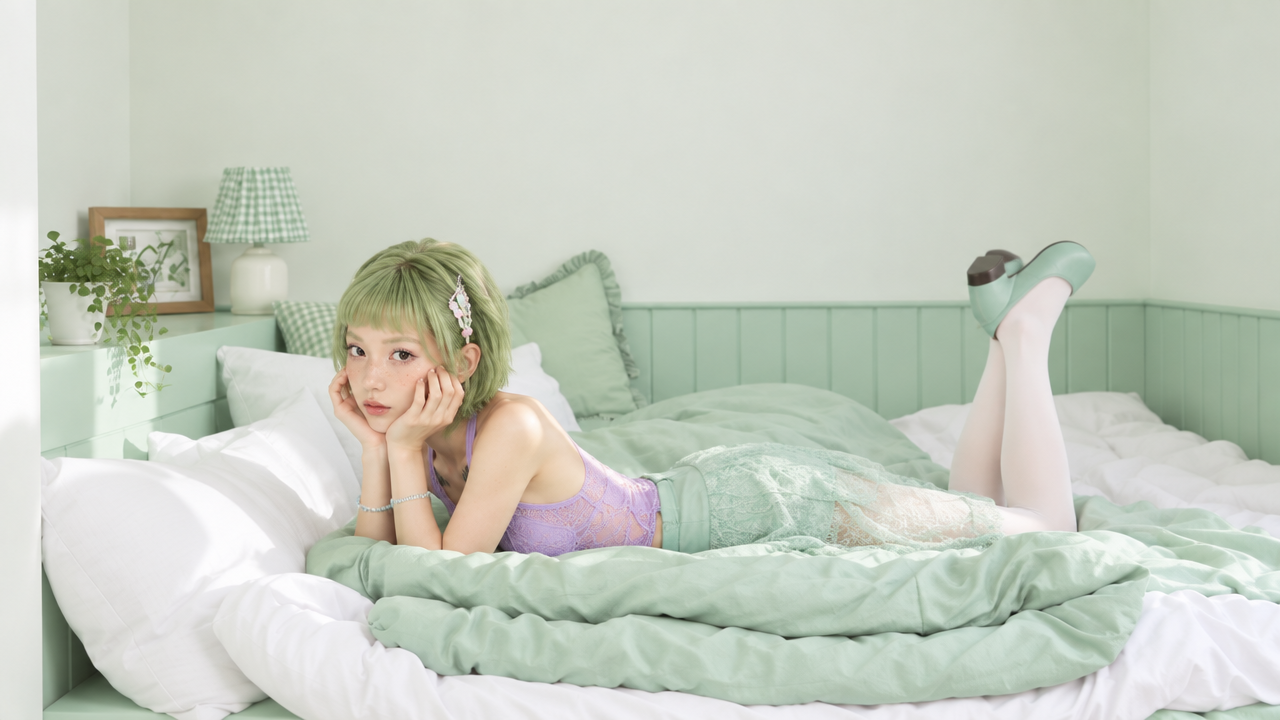
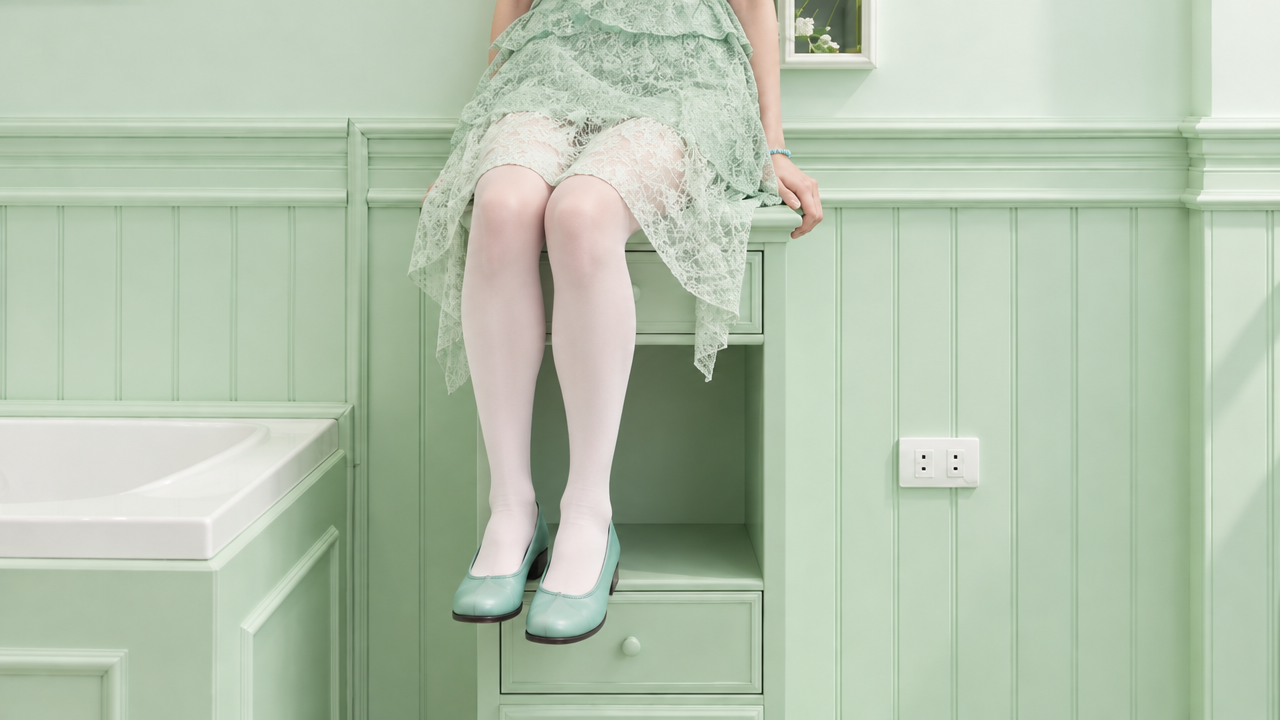
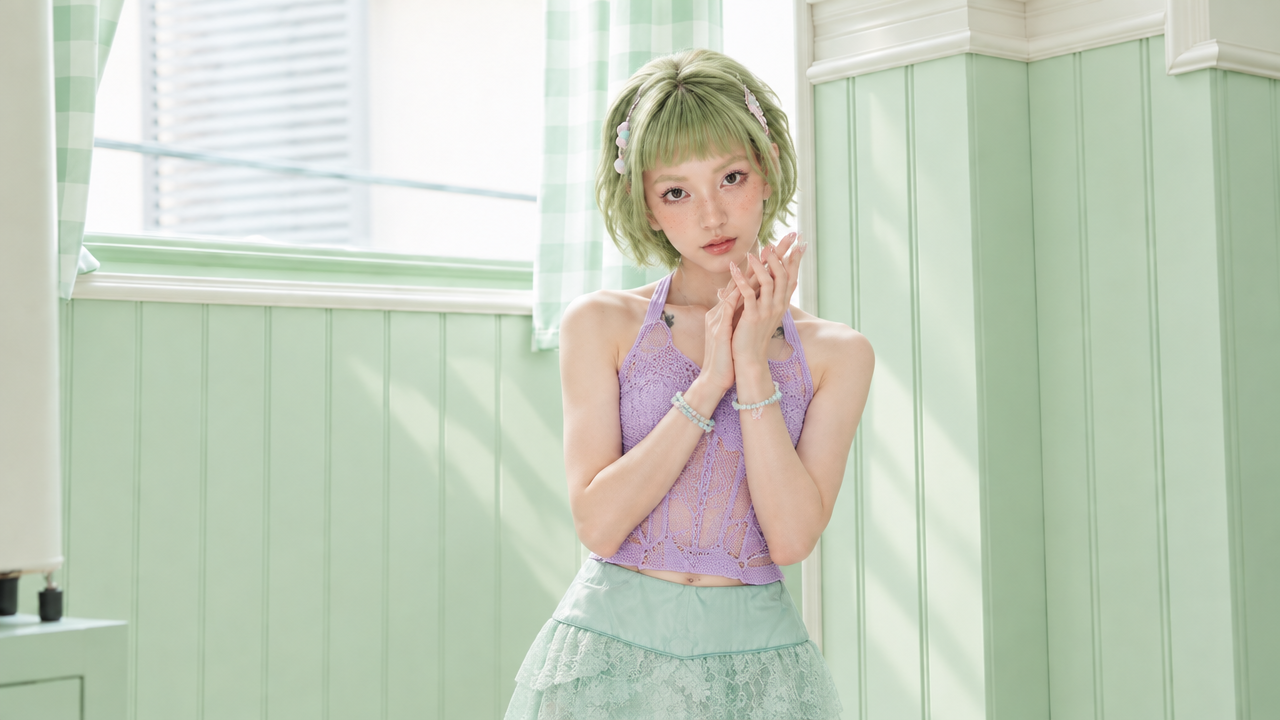
The editor allows up to min(duration + 1, 10) total frames, including the required first frame and any last frame. At 5 seconds, that is 6 total; at 9 seconds or longer, up to 10. A maximum of 8 middle images can be used. Choose the duration before filling all the slots.
8. Write a Prompt You Can Review
Give the model a concrete scene, then make the instructions easy to check against the result. Start with a main action and one camera direction. Add more shots only after you know what must remain consistent. A longer prompt is useful when it clarifies a decision; repetition does not replace a clear visual plan.
A practical prompt checklist
- Subject: who or what appears, and which reference defines it.
- Action: what happens first, next and at the end.
- Camera: framing and movement that make the action readable.
- Location and light: the space, time of day and main light source.
- Continuity: details that must remain recognizable between shots.
- Sound: desired speech, ambience and performance style.
The current prompt box accepts up to 8,000 characters. For more starting points, browse the Kling 4.0 video examples and select Recreate to load a prompt into the editor.
9. Check Settings, Files and Credits
| Setting | Current editor | Before generating |
|---|---|---|
| Duration | 3–30 seconds | Choose a length that fits the action and keyframe count. |
| Resolution | 720p or 1080p | Use the available control; do not assume a 4K or HDR option. |
| Aspect ratio | 16:9, 9:16, 1:1, 21:9; Auto or Adaptive where shown | Match your intended display before generating. |
| Reference media | Up to 10 PNG/JPEG images and 5 MP4/MOV videos | Keep each file within 100 MiB; video shortest edge at least 700px. |
| Keyframe images | PNG or JPEG; up to 10 total, depending on duration | Count the first and optional last image in the total. |
| Original audio | Keep original audio appears when a video reference is present | Turn it on only if you want to retain source audio. |
| Prompt length | Up to 8,000 characters | Check asset mentions after editing your inputs. |
| Credits | The Generate button displays the current cost | Duration, resolution and video references affect the amount. |
For a 5-second draft, the displayed calculation is 10 credits at 720p or 15 credits at 1080p before a video-reference surcharge. A video reference adds 1 credit per output second. Always use the amount shown on Generate for your selected settings. See credit plans if you need a larger balance.
10. Troubleshooting and Common Questions
Why is the reference upload rejected?
Check the format and file size first. Reference images must be PNG or JPEG; videos must be MP4 or MOV. Each file must be 100 MiB or smaller, and a reference video must have a shortest edge of at least 700 pixels. Use no more than 10 images and 5 videos. A video may also fail if the browser cannot decode it; try a standard MP4 export.
Why can I not add another middle frame?
The frame allowance changes with duration. The current editor allows the smaller of 10 frames or duration in seconds plus one, including the required first frame and an optional last frame. At 5 seconds that means 6 total frames. Increase the duration or remove an image. There are at most 8 middle-frame slots.
How do I keep the same person or product?
Use clear, compatible reference images and identify their purpose in the prompt. Avoid mixing different outfits, product variants or camera-facing directions without explaining the change. Review faces, hands, clothing and product details across the whole clip, then adjust one instruction at a time.
Can reference media and keyframes be used together?
The editor treats References and Frames as separate generation modes. References combine visual guidance; Frames supplies the first image and any ordered middle or last images. Choose the mode that matches the control you need rather than expecting uploads from one tab to act as inputs in another.
Where can I find my generated video?
After submitting, open History in the editor. Sign in to view your saved works. You can also visit your profile to review generation history. Check the result from beginning to end before downloading or making another version.
Need to check a saved result? Open your generation history. For a different workflow, explore the Kling 3.0 Motion User Guide.