Kling Avatar 2.0 User Guide
Kling Avatar 2.0 creates AI talking avatar videos from a character image, voice audio, and a performance prompt. It is built for presenter videos, product explainers, course content, social clips, localized brand messages, and virtual spokesperson workflows.
This guide explains the full workflow: preparing a clean avatar image, adding voice audio, writing a useful performance prompt, choosing Standard or Pro mode, and reviewing the generated result for lip sync, expression, and gesture quality.
Use Kling Avatar 2.0 when you need a consistent speaker without recording a new video shoot for every script, market, or campaign variation.
Kling Avatar 2.0 Feature Examples
1. 5-Minute Video Coverage for Long Content Scenes
Use longer voice tracks for product walkthroughs, course sections, brand messages, and multilingual explainers.
Avatar Image
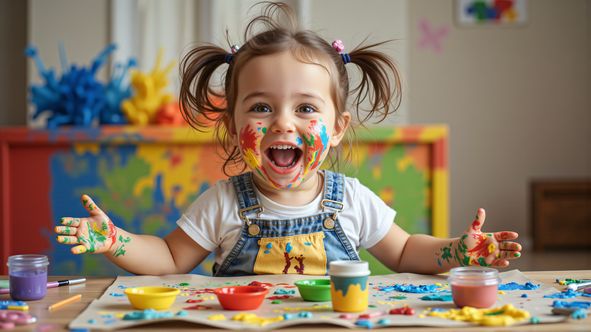
Input character image for the talking avatar.
Voice Audio
Voice audio drives lip sync, timing, and spoken delivery.
Avatar Output
Generated Kling Avatar 2.0 talking video output.
2. Stable and Clear Hand Movements
Guide gestures and hand poses for presenter videos where the avatar points, explains, waves, or introduces a product.
Avatar Image
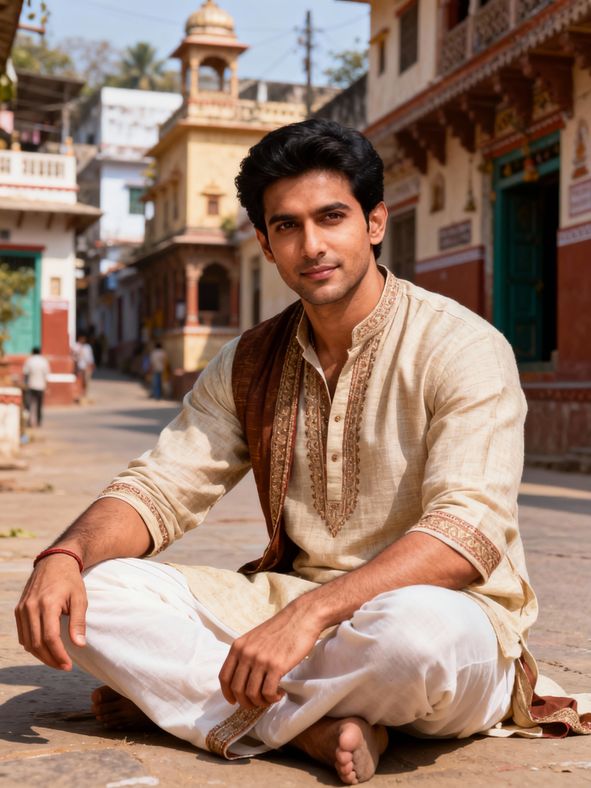
Input character image for the talking avatar.
Voice Audio
Voice audio drives lip sync, timing, and spoken delivery.
Avatar Output
Generated Kling Avatar 2.0 talking video output.
3. Improved Performance and Action Quality
Create more active avatar performances with natural posture, head movement, body rhythm, and scene presence.
Avatar Image
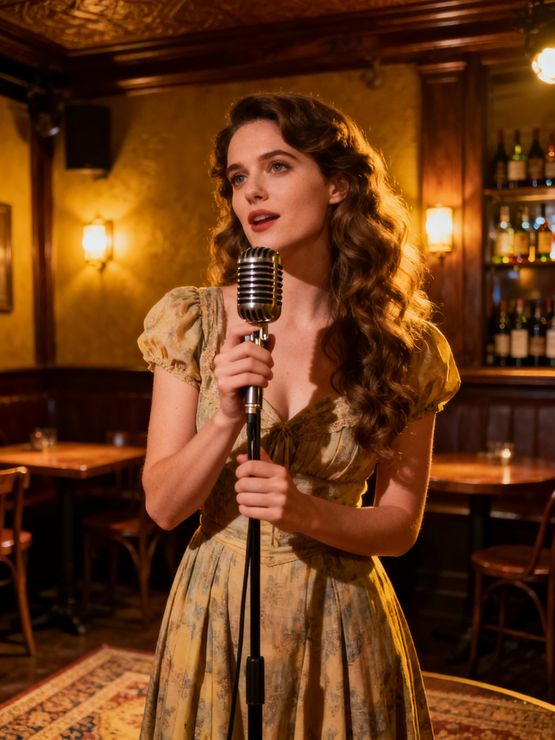
Input character image for the talking avatar.
Voice Audio
Voice audio drives lip sync, timing, and spoken delivery.
Avatar Output
Generated Kling Avatar 2.0 talking video output.
4. Excellent Lip Sync
Match mouth movement to speech timing for believable product explainers, educational content, and creator scripts.
Avatar Image
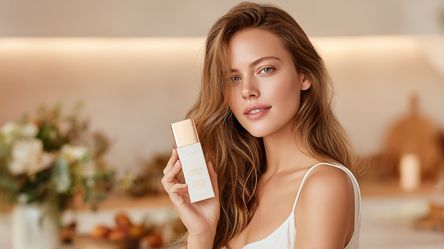
Input character image for the talking avatar.
Voice Audio
Voice audio drives lip sync, timing, and spoken delivery.
Avatar Output
Generated Kling Avatar 2.0 talking video output.
5. Support for Various Character Types
Use realistic people, stylized characters, mascots, brand spokespeople, and virtual presenters in different content styles.
Avatar Image
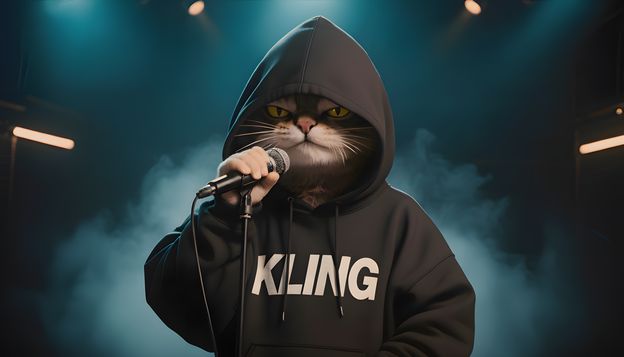
Input character image for the talking avatar.
Voice Audio
Voice audio drives lip sync, timing, and spoken delivery.
Avatar Output
Generated Kling Avatar 2.0 talking video output.
6. Multilingual Support
Reuse the same avatar identity across English, Japanese, Korean, Chinese, and other localized campaign versions.
Avatar Image
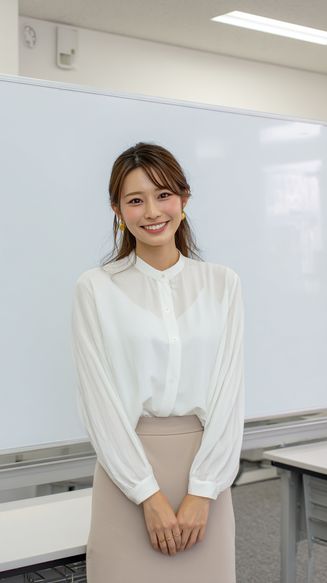
Input character image for the talking avatar.
Voice Audio
Voice audio drives lip sync, timing, and spoken delivery.
Avatar Output
Generated Kling Avatar 2.0 talking video output.
7. Precise Control Over Emotions and Actions
Use prompts to guide friendly explanations, excited announcements, calm tutorials, and confident sales messages.
Avatar Image

Input character image for the talking avatar.
Voice Audio
Voice audio drives lip sync, timing, and spoken delivery.
Avatar Output
Generated Kling Avatar 2.0 talking video output.
How to Use Kling Avatar 2.0
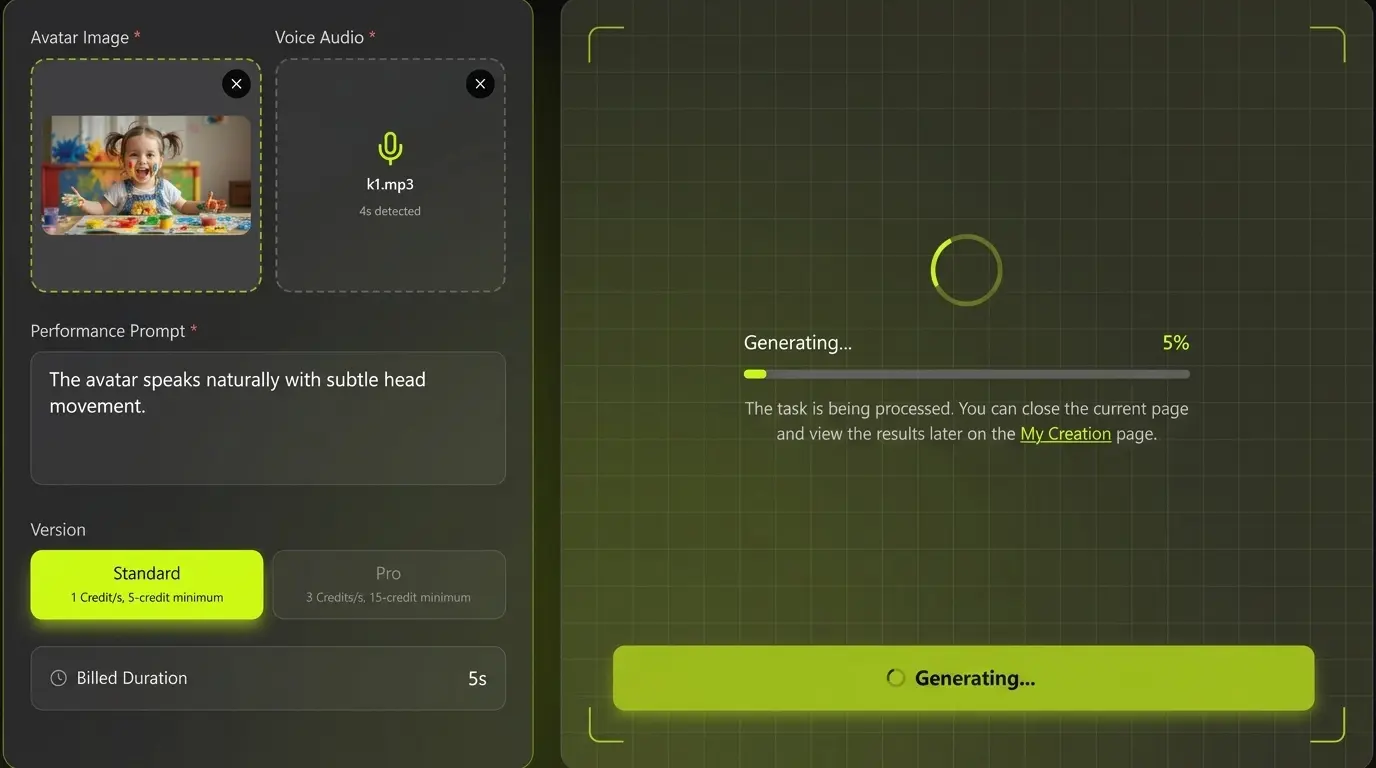
- Upload a clear avatar image; Start with a high-quality portrait, character, or spokesperson image. Keep the face visible, avoid heavy blur or deep shadow, and leave enough framing for natural head and shoulder movement.
- Add clean voice audio; Upload the narration track that should drive the avatar. Clear speech, steady volume, and limited background noise help the model produce stronger lip sync and timing.
- Write the performance prompt; Describe how the avatar should speak and move. Useful details include tone, emotion, hand gesture, posture, camera framing, and whether the delivery should feel calm, excited, friendly, or professional.
- Choose Standard or Pro; Standard mode costs 1 credit per second with a 5-credit minimum. Pro mode costs 3 credits per second with a 15-credit minimum. Use Pro when you want stronger performance quality.
- Generate and review; Review lip sync, expression, gesture quality, and voice timing. If the result needs refinement, simplify the prompt, improve the input image, or use cleaner audio.
Tips for Better Kling Avatar 2.0 Results
- Use a clear face image. A centered portrait with visible eyes, mouth, and natural lighting gives the model better identity and expression reference.
- Keep audio clean. Avoid music, echo, or overlapping speakers. Stable voice volume improves lip sync and timing.
- Write simple performance prompts. Ask for one main emotion and a few natural gestures instead of many conflicting actions.
- Match prompt style to the use case. Product demos often work well with confident and friendly delivery; tutorials usually work better with calm and clear explanation.
- Use Pro for polished scenes. Pro mode is better for videos where hand movement, expression, and overall performance quality matter more.