Generate Up to 30 Seconds
Kling 4.0 generates videos up to 30 seconds long in a single generation. Give the opening, main action, and ending room to unfold, then extend the video when your story needs more time.
Generate up to 30-second videos in 4K, with up to 15 reference assets, 10 keyframe images, multilingual audio-visual synchronization and stereo sound.
Reference images


Recreation prompt
Create a cinematic dark-fantasy sequence set over a burning medieval riverside city at a stormy golden sunset. A huge charcoal-black dragon has a horned head, a long spined neck and tail, and broad wings with dark red-brown membranes. Begin with a low-angle view of the dragon roaring on a ruined stone tower, fire and smoke rising behind it. It crouches and launches from the masonry, scattering dust and loose stones. Cut to wide views of the dragon flying across the river toward the city, then follow it between dense smoke columns and above steep rooftops and Gothic towers. Alternate rear tracking views with low passes that make the buildings establish the creature's scale. Show the dragon opening its jaws and directing a bright stream of fire into the streets; orange flames spread across the visible roofline as smoke rolls upward. End on a wider rear view of the same dragon flying away above the burning city beneath heavy clouds. Keep the same dragon silhouette, wing anatomy, dark scales and red-brown membranes across the cuts. Maintain the medieval architecture and warm fire against cool smoke. No modern buildings, captions or added characters. Suggested sound design: wing beats, wind, a deep roar, crackling fire and collapsing masonry; no spoken dialogue.
Recreate as a 15-second adaptation with the current generator.
Kling 4.0 is an AI video model from Kuaishou for creating video from text, images, and reference materials. Omni Reference brings visual and voice references into the same workflow, with multilingual audio-visual synchronization.
It follows earlier Kling models, including Kling 3.0 and Kling 3.0 Turbo.
Generate 3–30 seconds in one pass with 720p, 1080p or 4K output. Use up to 10 keyframes to guide the scene, and combine up to 15 Omni Reference assets across images, videos, voices and subject elements.
Longer videos, flexible references, and multilingual sound and picture in one workflow.
Kling 4.0 generates videos up to 30 seconds long in a single generation. Give the opening, main action, and ending room to unfold, then extend the video when your story needs more time.
Choose 720p, 1080p or 4K video output. Compose for your final delivery with 21:9, 16:9, 1:1, 9:16 or Auto aspect ratios, from social clips to widescreen product presentations.
Combine up to 15 reference assets in total across images, videos, voices and subject elements. Use up to 10 images, 5 videos totaling 30 seconds, or 7 subject elements within that shared limit.
Create multilingual dialogue with synchronized picture and two-channel stereo audio. Combine voice references with visual materials to guide each character’s performance.
Use up to 10 keyframe images to define important moments in a 3–30-second video. Guide character states, scene changes and the opening and closing composition.
Refine expressions, movement, backgrounds and style using up to 5 input video clips, including one primary video. Each clip is 3–30 seconds, with a combined limit of 30 seconds.
Shape the subject, voice, and continuation of your scene with a clear creative brief.
Choose references that show the appearance you want. Describe what the subject does, rather than repeating every detail already visible in the reference.
Give the shot one clear camera direction, such as a slow push-in or a side tracking move. Treat this as prompt direction and review how the output follows it.
Name a concrete setting and a light source. Keep these directions consistent when you plan another shot or extend the same scene.
Use voice references with multilingual audio-visual synchronization. Write concise dialogue and review which voice delivers each line in the result.
Use up to 10 keyframe images to define the opening, main action and ending. Keep character details and lighting consistent between the frames.
Use a primary video and supporting references to change expressions, movement, backgrounds or style. Keep the combined input-video duration within 30 seconds.
Six ways to create with Kling 4.0.
Adapt your references and shot direction to each project, from a short product reveal to an extended scene.
plan a product reveal up to 30 seconds and use reference elements to guide its appearance
prepare a character scene with voice references and multilingual synchronized dialogue
plan an opening, action and ending across up to 30 seconds, guided by up to 10 keyframes
compose a short clip for your social placement and add exact captions in your editor
explain a concept across a 3–30-second sequence with clear visual milestones and narration
gather visual references and assemble the final cuts to your chosen music in an editor
Start with the shot that carries your main idea. Add references for the details that matter, then assemble captions, branding, and final cuts in your editor.
Six prompt examples for subjects, camera movement, and lighting. Copy one and adapt it to your scene.
An elderly tailor sewing a wool jacket at a wooden workbench, close-up on the fabric and tools, slow camera push-in, soft window light from the left.
Keep the action simple and the framing close to focus attention on the craft.
A watchmaker examining an open mechanical watch on a workbench, macro view of the gears and fine tools, slow sideways camera move, soft task-lamp light.
Name the detail you want in focus and use one camera move to keep the shot readable.
A snow leopard walking carefully along a rocky mountain slope, wide view with distant peaks, slow tracking shot from the side, pale dawn light.
Combine a clear direction of movement with a wide frame to show the scale of the landscape.
An autumn forest with golden leaves moving gently in the breeze, slow forward camera move between the trees, warm backlight filtering through the canopy.
Describe the movement of the leaves separately from the camera movement.
A curved wooden staircase inside a quiet building, low-angle view looking upward, slow camera tilt following the handrail, patterned afternoon sunlight on the walls.
Give the camera a visible line to follow, such as the handrail or the edge of the stairs.
A florist folding brown paper around a bouquet of pink and cream flowers, medium close-up at a shop counter, fixed camera, soft natural light from a nearby window.
A fixed camera leaves attention on the wrapping action and makes changes easier to review.
Four groups and the video workflows Kling 4.0 supports for each.
Build short stories, character clips, and social edits around one clear action. Draft the main shot first, then decide whether the story needs a continuation or a cut.
Turn product references and a campaign brief into a shot plan. Compare framing and movement options, then add exact logos, prices, and campaign text in your editor.
Explore scene blocking, reference combinations, and longer continuations before a final production pass. Review character appearance and continuity at each extension boundary.
Define test cases for inputs, output quality, and processing time before building an integration. Confirm API access and supported modes with your provider; web access alone does not establish API availability.
Who should skip it. If you only need a short clip, compare the current tools on your own brief. Longer duration and reference controls are useful only when your project needs them; check the actual credit cost before choosing.
Compare video duration, resolution, reference inputs and creative controls.
| Feature | Kling 4.0 | Kling 3.0 / Omni | Seedance 2.5 |
|---|---|---|---|
| Max clip, one pass | 30s | 15s | 30s |
| Resolution | 720p / 1080p / 4K | native 1080p + 4K | native 1080p |
| Reference capacity | Up to 15 reference assets in total | Depends on the mode; check the selected model | Up to 50 files (30 images, 10 videos, 10 audio) |
| Reference input types | Images, videos, voice references and subject elements | Character video reference; other inputs depend on the mode | Images, video, and audio |
| Native audio + lip-sync | multilingual audio-visual synchronization | yes | yes |
| Multi-keyframe input | Up to 10 images | not compared here | not compared here |
| Video editing inputs | Up to 5 clips; 30s combined | not compared here | not compared here |
Consider Kling 4.0 when your brief needs a longer continuous scene, multiple references, or multilingual dialogue. Choose the generation or extension workflow that fits the shot rather than starting with the longest duration.
Use the same brief and reference materials to compare framing, subject detail, voice timing, and continuity. Check the actual generation cost in your service. Element and file counts use different rules, so a larger number alone does not establish better reference control.
Four things to plan around before you build a project on it.
Review these details before delivering a video, especially when combining reference assets, keyframes or edited footage.
Review fingers, tool contact, and small objects frame by frame. Keep an alternate take or practical insert available for essential close-ups.
Check brand names, prices, and captions. Composite exact text in your editor where accuracy matters.
Review speaker identity, sound timing, and visual continuity across the whole sequence, especially at extension boundaries and in longer sequences.
Compare the output with your references. Check product shape, colour, logos, and fine details across the sequence before delivery.
What this means in practice. Check the generated sequence against your brief and references. Use your editor for exact text, branding, and any corrections the generation controls do not cover.
Follow these three steps once Kling 4.0 becomes available on Kling Motion Control. Supported modes will be shown in the generator.
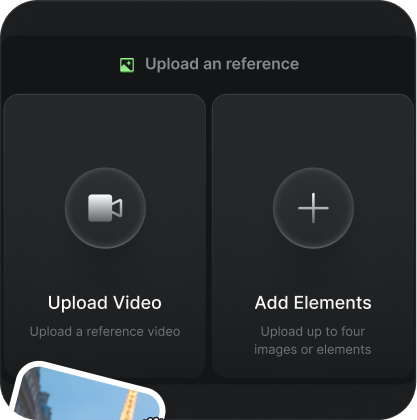
Select the model and add clear references for your subject, visual direction, or voice. Use only materials that help define the scene, and follow the input formats shown in the interface.
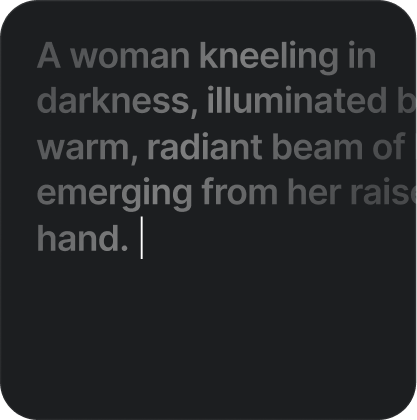
Describe the subject, camera, and light — a chef plating pasta, slow dolly in, warm window light from the left. Choose the duration and output settings for your project. Start with a short draft to check the composition.
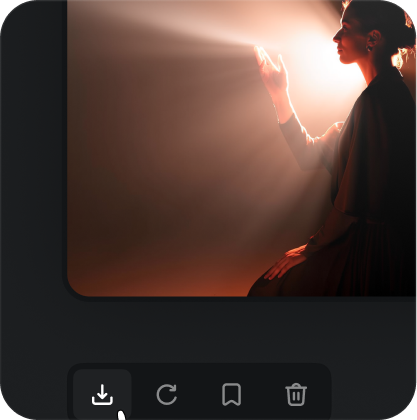
Review the action, voice timing, and reference details in your draft. If the scene needs more time, describe the next action and extend it. Check the join before adding captions or exporting your final edit.
Keep your prompts. Phrasing that works carries between Kling versions. A saved prompt library is worth more than any single clip.
Use your existing Kling Motion Control credits in the generator on this page. Compare credit packs below and check the displayed generation cost before submitting.
Choose one-time credits • Flexible billing options
Taxes may apply based on your location and will be calculated at checkout.
Video duration, references, multilingual audio, pricing, and access.
Kling 4.0 is an AI video model from Kuaishou. It generates 3–30-second videos in 720p, 1080p or 4K, with multilingual synchronized audio and stereo output. Use up to 15 Omni Reference assets in total and up to 10 keyframe images to direct the scene.
Kling 4.0 supports 3–30 seconds in a single generation. Video extension is a separate workflow; check the extension options available in your service rather than treating an extended video as a single generation.
Yes. Kling 4.0 supports 720p, 1080p and 4K output. Choose the resolution available in your selected mode. Resolution and HDR are separate settings; verify the export options required for your delivery.
Use up to 15 reference assets in total across images, videos, voice references and subject elements. Category limits include up to 10 images, up to 5 videos with a combined duration of 30 seconds, and up to 7 subject elements. These limits share the total of 15; they are not separate allowances that can be added together.
Yes. Voice references help guide a subject’s voice and count toward the total of 15 Omni Reference assets. Combine voice direction with multilingual audio-visual synchronization, then review the dialogue timing in the output.
Kling 4.0 supports video editing with up to 5 input clips, including one primary video. Each clip must be 3–30 seconds long, and their combined duration must not exceed 30 seconds. Define the expression, movement, background or style you want to change.
Kling 4.0 supports up to 10 keyframe images. Use them to define important visual moments, character states and scene changes. Keep the subject and visual direction consistent between frames.
Kling 4.0 supports up to 30 seconds per generation, compared with the 15-second Kling 3.0 limit listed here. Kling 4.0 adds up to 10 keyframe images and supports up to 15 Omni Reference assets in total. Compare the same brief and check the available settings and cost in your chosen service.
You can use your existing Kling Motion Control credits in the generator on this page. The required credits are shown on the Generate button and update with your selected settings. Review that cost before submitting; the pricing section lists credit packs.
Sign in to check your credit balance and any available introductory offer. Generation requires sufficient credits for the selected settings. Credit packs do not include unlimited generation.
API access is separate from access through a web generator. Check your provider documentation for Kling 4.0 model IDs, supported inputs, modes, and billing before integration. This page does not announce an API endpoint.
Use the creation panel at the top of this page to enter a prompt or upload an image. Select the available duration, resolution and sound settings, then check the credit cost before generating. Available settings depend on the generation service.
Check the watermark and commercial-use terms of the service and plan you choose. Model capabilities alone do not determine those terms. Review the rights to your reference materials before publishing an output.
Video duration is different from processing time. Use the estimate shown by your service, and allow time to review the result and any extensions. This page does not promise a fixed generation time.
Yes. Kling 4.0 supports multilingual audio-visual synchronization, voice references and two-channel stereo output. Choose the language and delivery style for each speaker, then review pronunciation and timing before delivery.
Explore the video tools available on Kling Motion Control today.
Use your existing credits and review the displayed cost before generating.